Begin with the document actions
PEP separates the document itself from its bibliographic reference. Download is for an accessible copy of the text; Cite is for formatted reference data. Both appear with Save in the actions above the document.
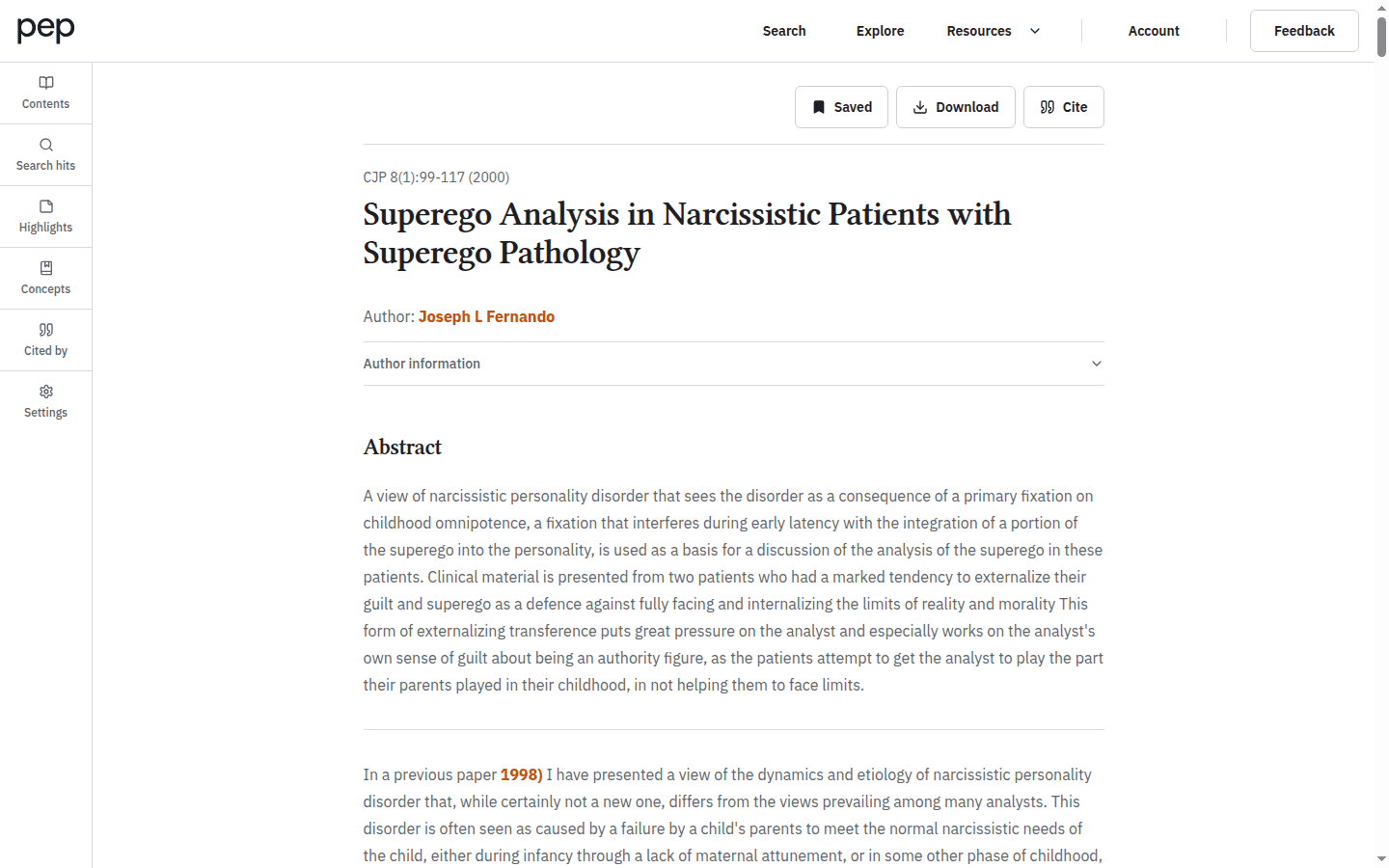
This distinction is useful when the same source needs to go into two different workflows—for example, a PDF for close reading and a BibTeX record for a reference manager.
Choose a download format
Select Download to open Download this article. PEP shows the formats available for the current document and access state.
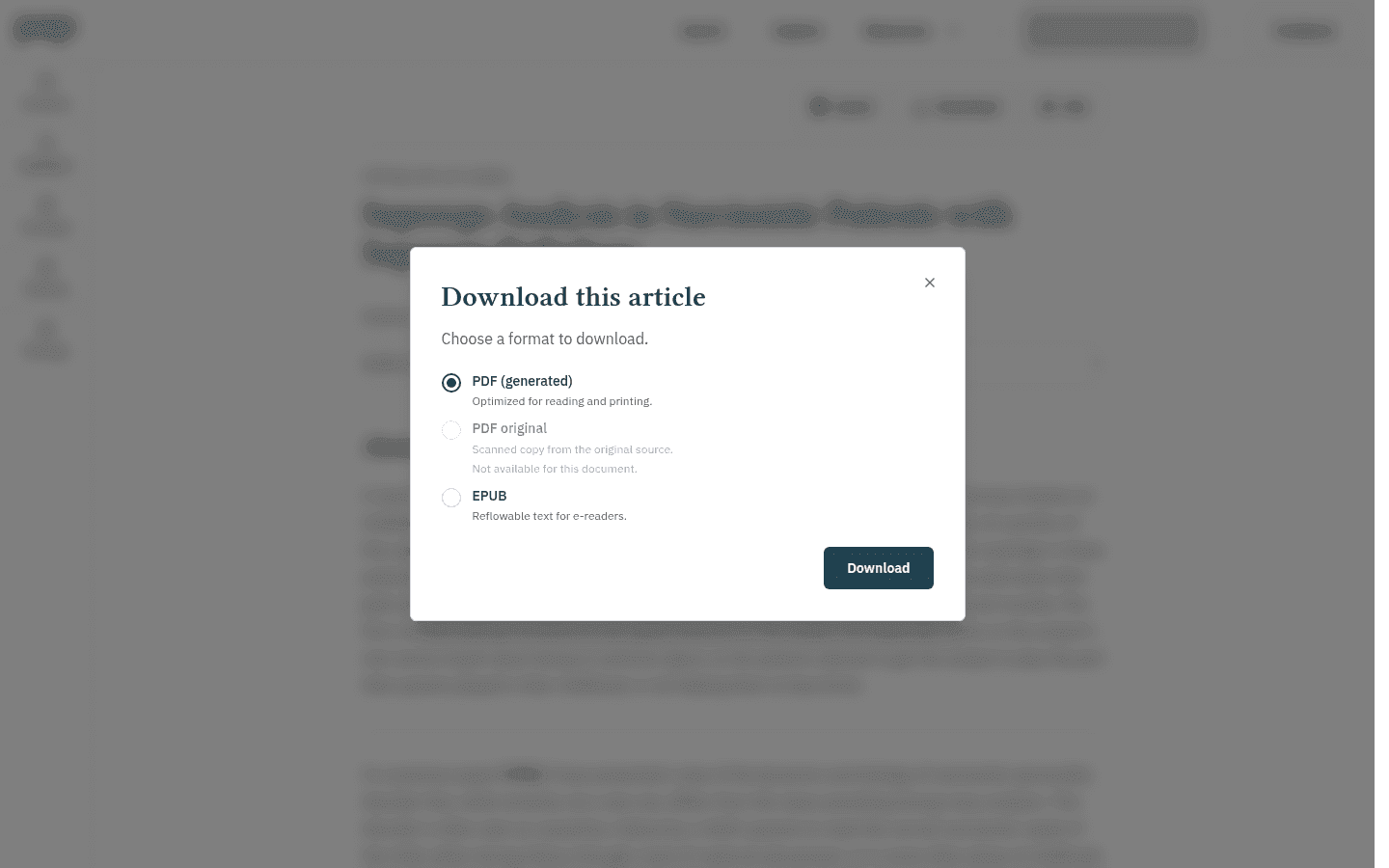
The possible choices are:
- PDF (generated), optimised for reading and printing;
- PDF original, a scanned copy from the original source;
- EPUB, reflowable text for e-readers.
Select the format that fits your task, then select Download. A generated PDF is usually the practical choice for consistent pages and ordinary printing. EPUB lets the text adapt to an e-reader. PDF original is useful when you need to inspect the source presentation, but it appears only when PEP has an original scan for that document.
There is no separate Print action in the current reader. If you need a paper copy, open an available PDF and use the print controls supplied by your PDF viewer or browser.
Understand unavailable options
A format can remain visible but disabled. The reason shown beneath it may ask you to sign in, explain that you do not have full-text access, or state that the format is not available for that document.
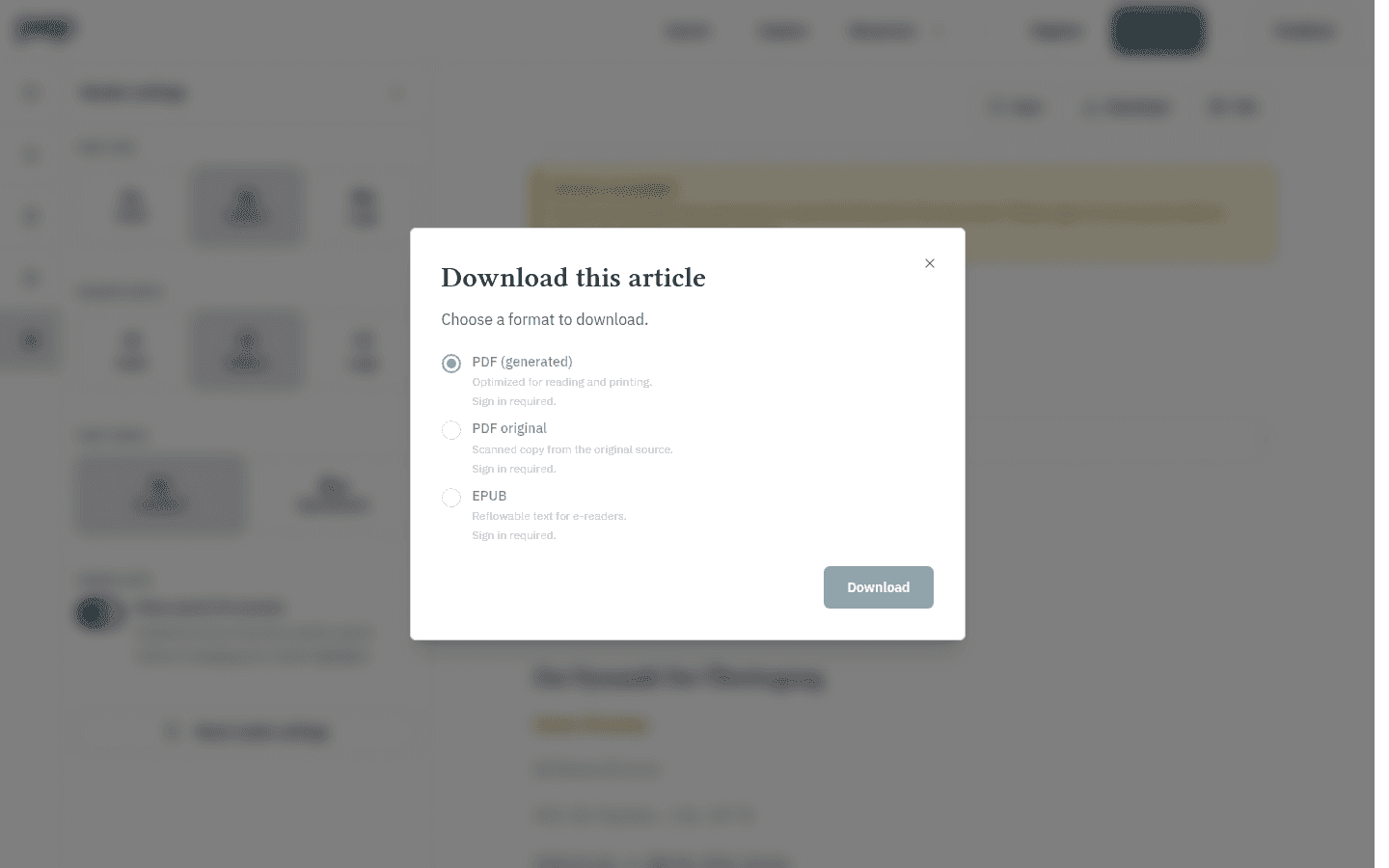
Notice that signing in and having full-text entitlement are related but different. Signing in identifies your account; your subscription, institution and any copyright embargo determine which complete documents you may use.
PEP may display Full text unavailable in the reader or a Copyright embargo notice on a publication page. You can still record the bibliographic details or follow an access link where one is supplied, but the notice is not a route around the restriction.
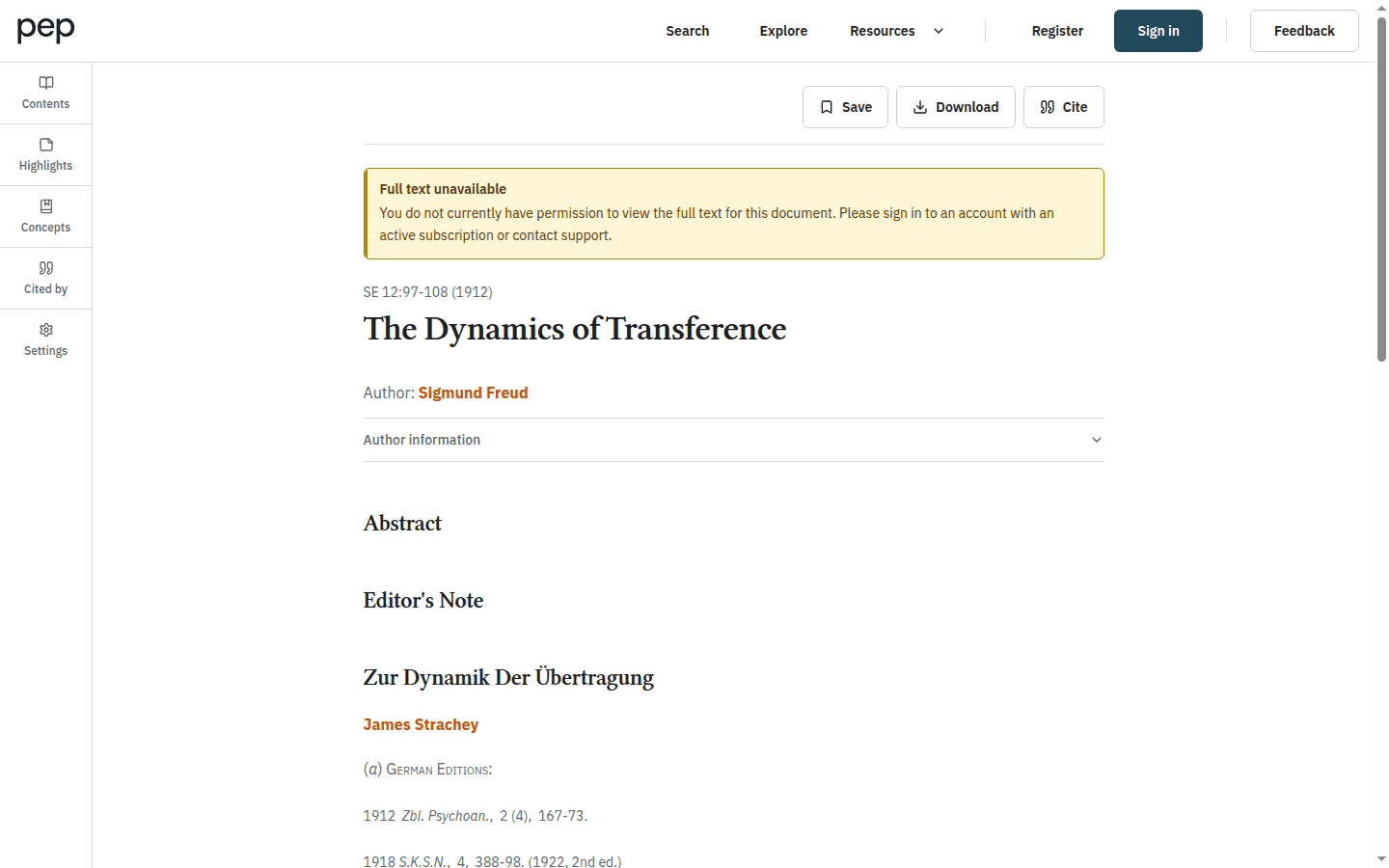
Use the availability shown for the current document and follow the applicable PEP terms and your institution’s conditions of access.
Create a citation
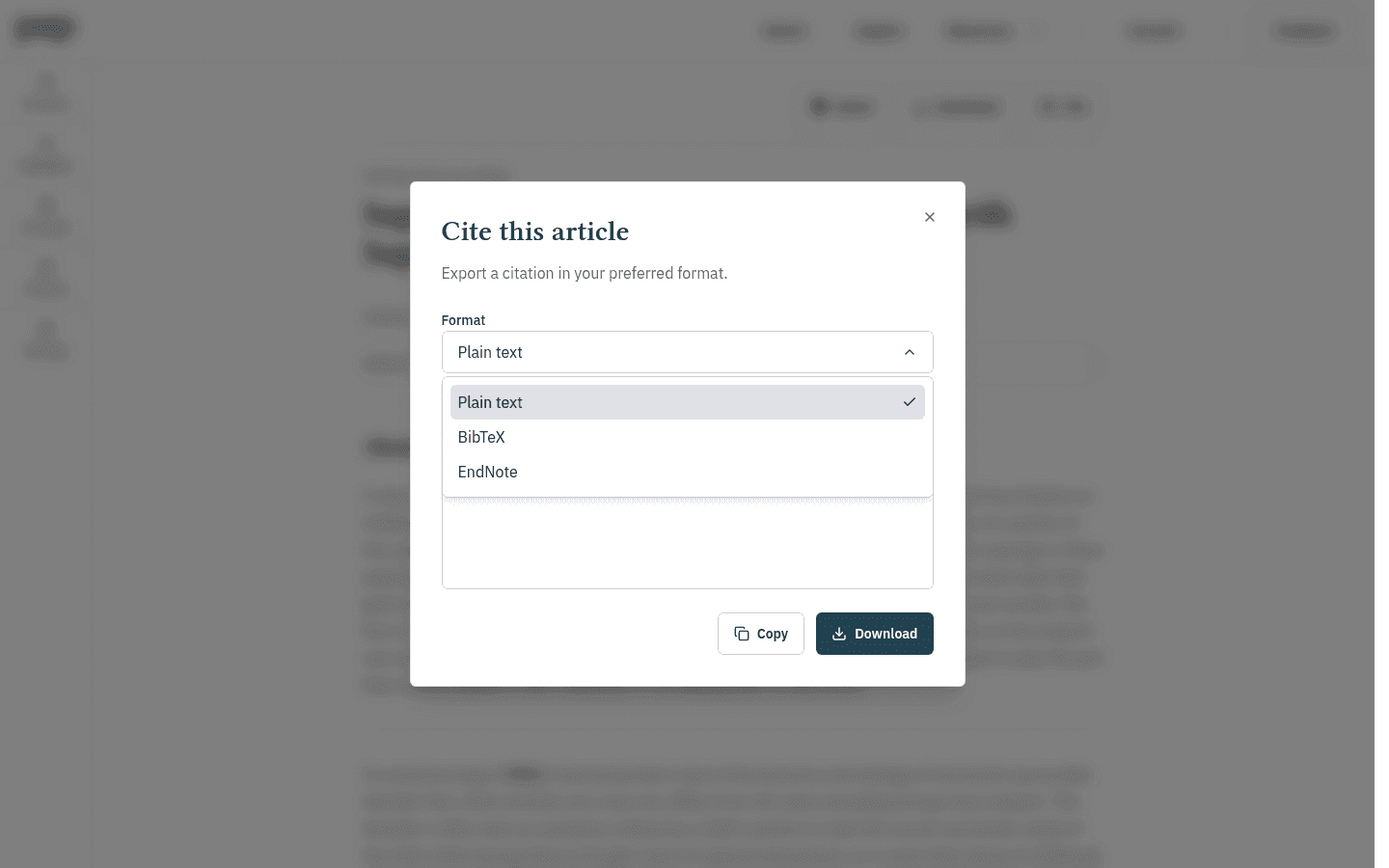
Select Cite to open Cite this article. The dialog contains a Format control and a read-only Preview so that you can inspect the generated reference before exporting it.
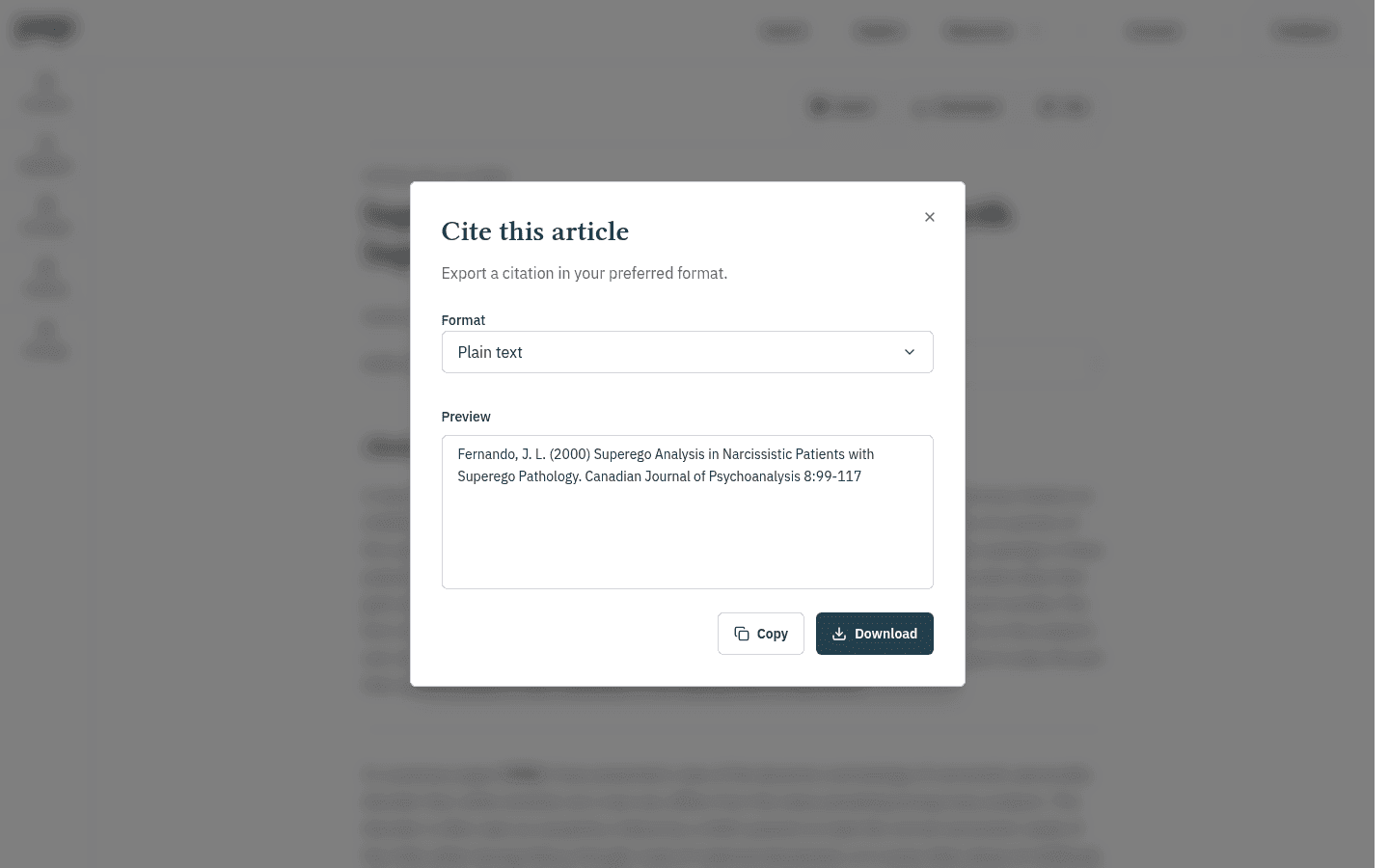
Open Format to choose Plain text, BibTeX or EndNote.
Read on an e-reader
When EPUB is available in Download, save the file and import it using your reading app’s instructions. PDF is another option for devices that support it. Compatibility and transfer steps depend on the device and app version; PEP does not certify every third-party reader. If a file opens incorrectly, try the other available format or consult the app’s support. The same access and download limits apply.
Plain text is convenient when you want to paste a readable reference into notes or a draft. BibTeX and EndNote provide structured exports for compatible reference-management tools.
After checking the Preview, select Copy to place the citation on the clipboard or Download to save the export as a file. Generated metadata can vary between records, so compare important references with the article and the requirements of your chosen citation style.
Cite several search results
On a search-results page, select the records you need and choose Cite selected. PEP opens a group citation preview with the same format choices and Copy and Download actions.
Select a deliberate set rather than assuming that every search result belongs in your bibliography. This is especially helpful when a broad exploratory search has produced records for several different lines of enquiry.
The citation export contains references, not article files. Download complete documents individually from their reader pages when your access permits it.
Next steps
Refining and Using Search Results explains selection and Cite selected in context. Continue with Reading and Navigating a Document for the surrounding reader tools, or My Research: Saving and Organising Articles when you want to preserve a working set before exporting it.