Build a reading list you can return to
My research keeps useful articles with your signed-in account. It replaces the legacy Favourites and Read Later folders with a default Reading list and any custom lists you create for topics, projects or reading plans.
Let’s use a list called Tutorial research as an example. Your own list might be named for a paper, seminar or clinical theme. The important point is to choose a name that will still make sense when you return later.
Create a custom list
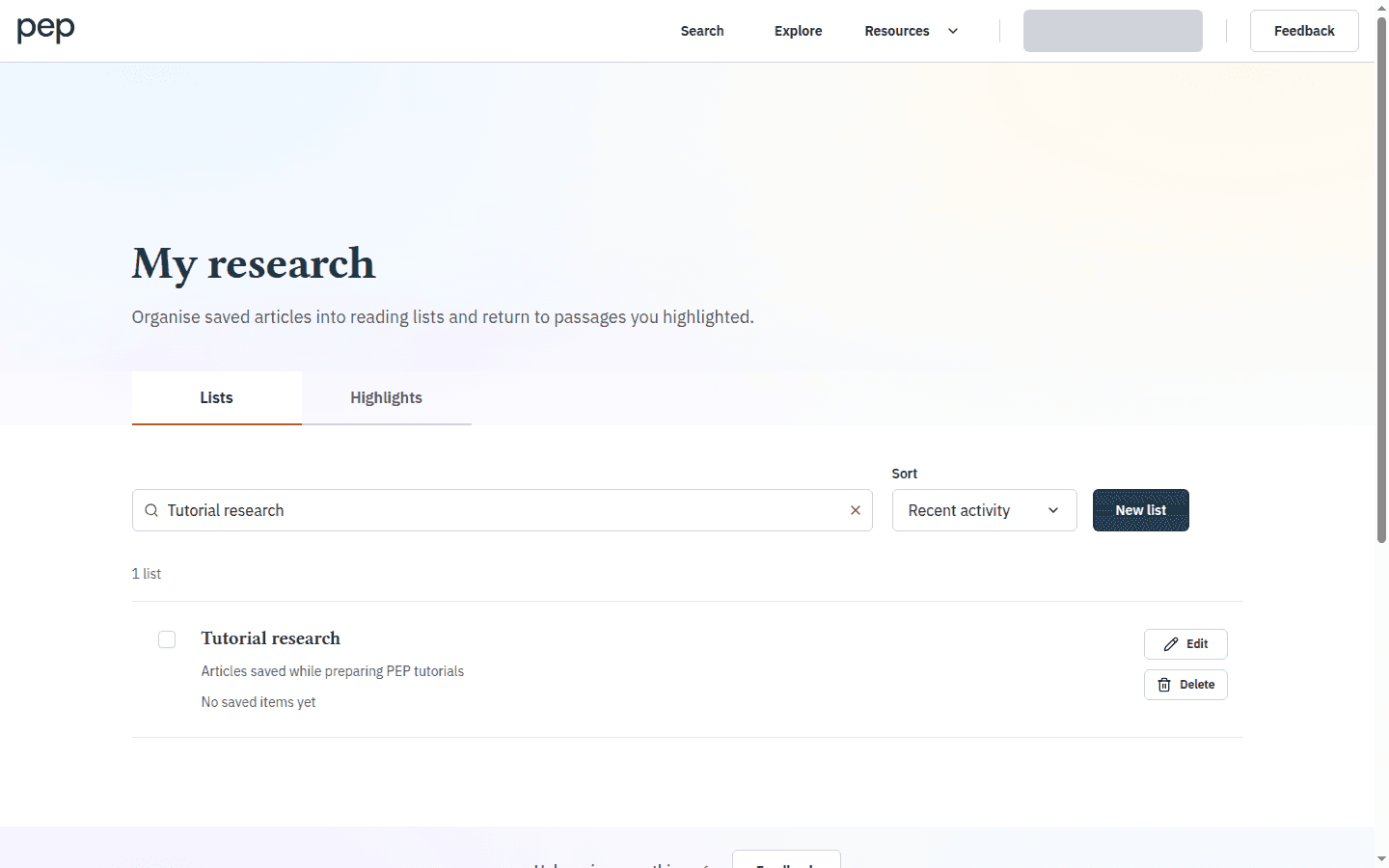
Sign in, open your account menu and select My research. The Lists tab shows your default Reading list and any custom lists. Select New list to open the form.
- Enter a Name.
- Use Description (optional) to explain the purpose of the list.
- Select Create list.
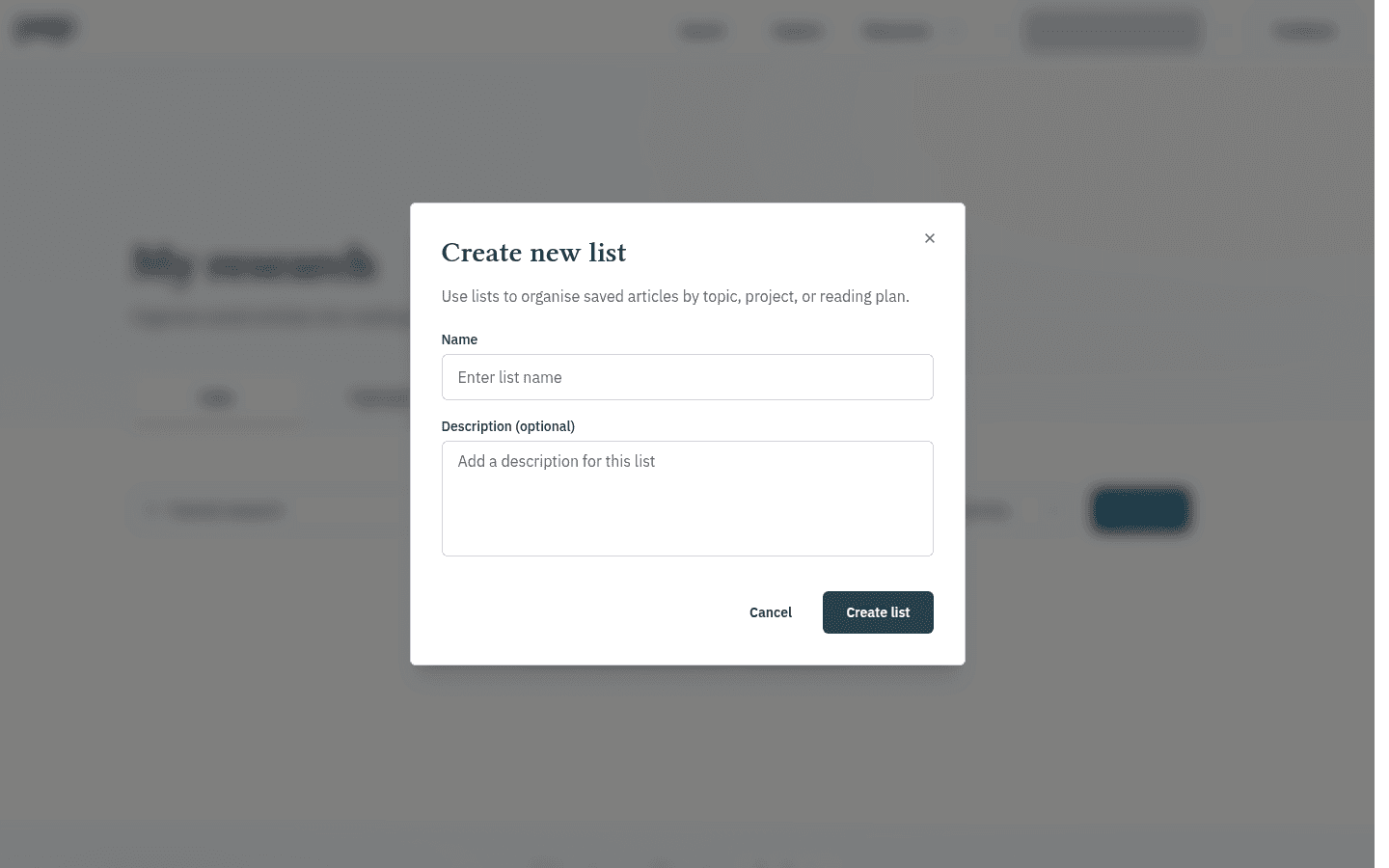
PEP confirms that the list has been created and adds it to the Lists page. In this tutorial, the example is Tutorial research with the description Articles saved while preparing PEP tutorials.
Save an article while reading
Open an article and select Save in the article toolbar. On the first press, PEP adds the article to your default Reading list and opens Save to list. Select any additional custom list that should contain the article.
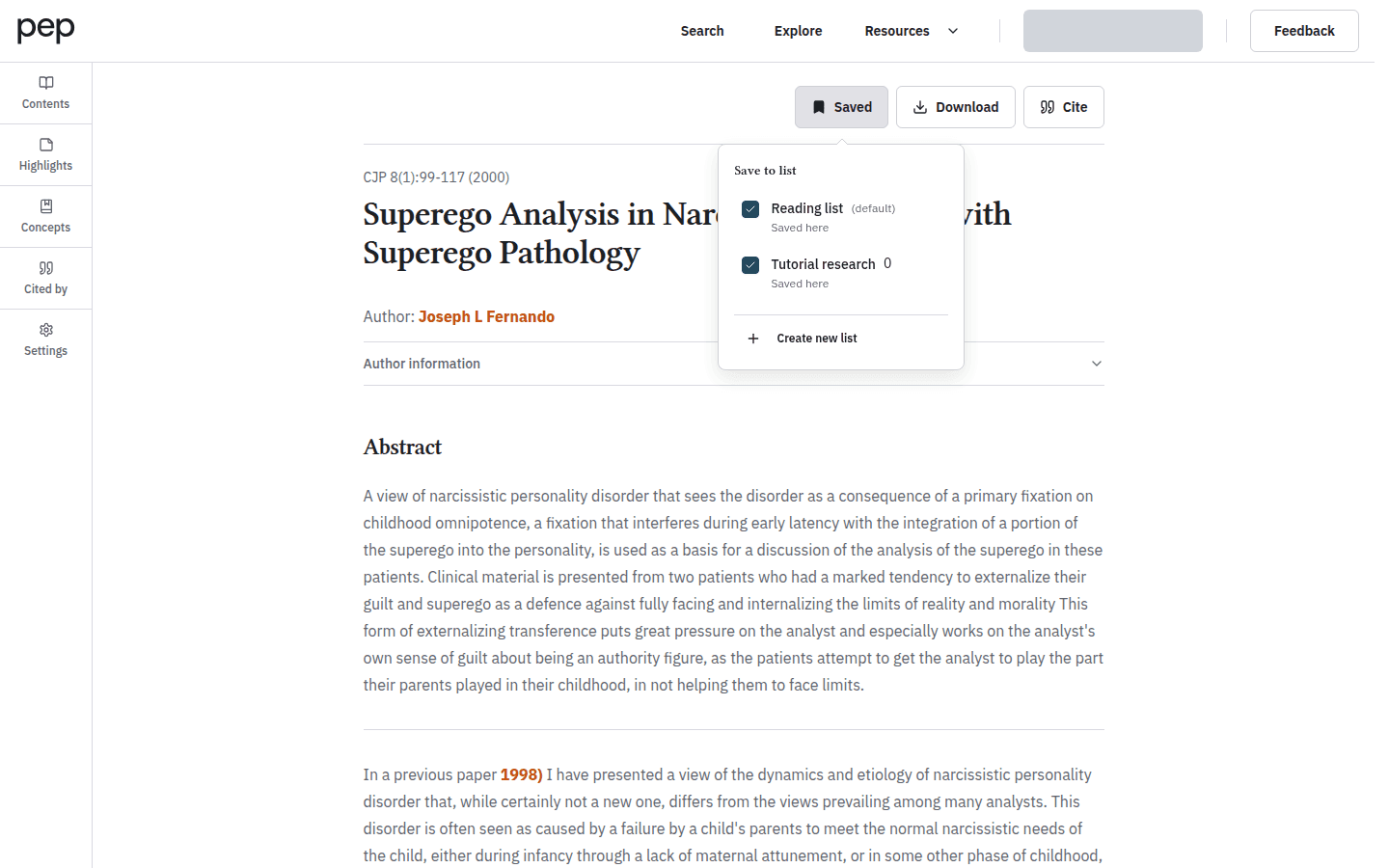
Notice that an article can belong to more than one list. This is useful when the same paper contributes to two projects. Open the Saved control again whenever you want to review or change its list membership.
Save several search results
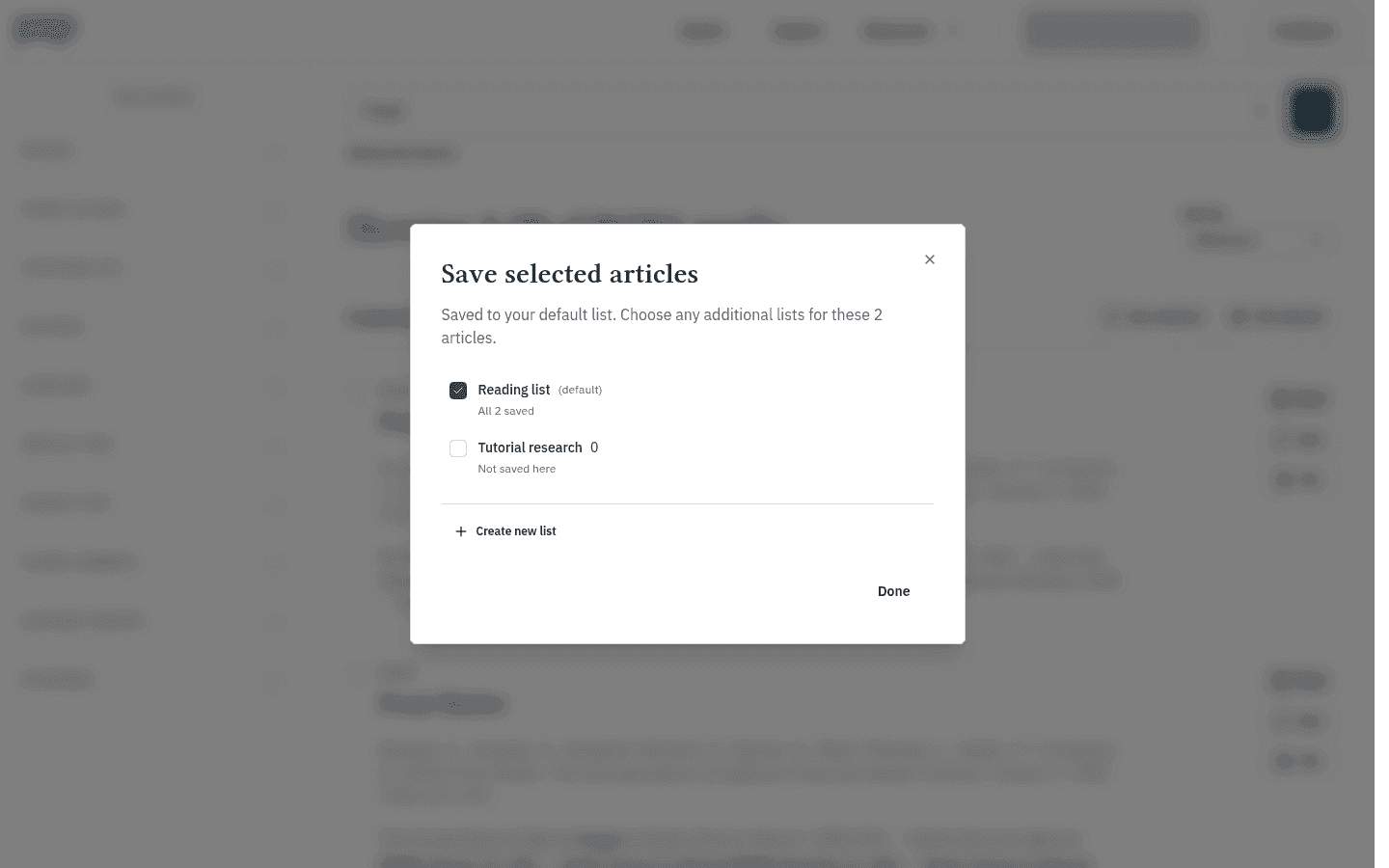
On a search-results page, select the checkboxes beside the records you need. The selection bar shows the number selected.
- Select Save selected.
- PEP saves the records to the default list and opens the list choices.
- Select any additional list that should contain all the selected records.
- Select Done when the membership is correct.
Find and review your lists
Return to My research and select Lists. Use Search lists or saved articles when you remember part of a list name or a saved record. Sort can order the overview by Recent activity, Name or Article count.
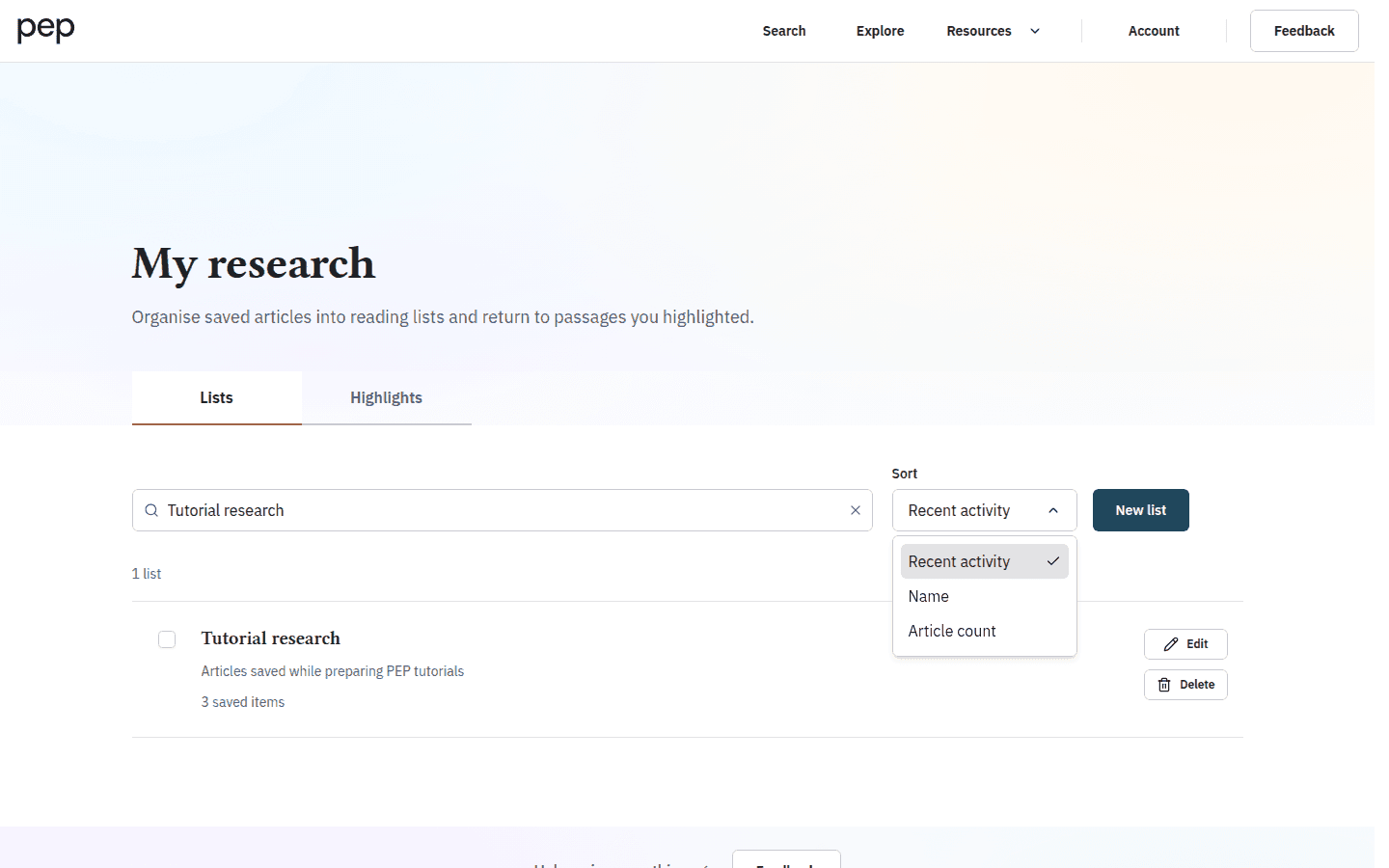
Select a list name to open its detail page. Each saved record links back to the document and shows when it was saved. Search saved articles narrows the current list, while Sort offers Recently saved, Oldest saved and Citation A-Z. Use Cite to export one reference, or select several visible records and choose Cite selected. Cite all in list is available when the list is within the current export limit.
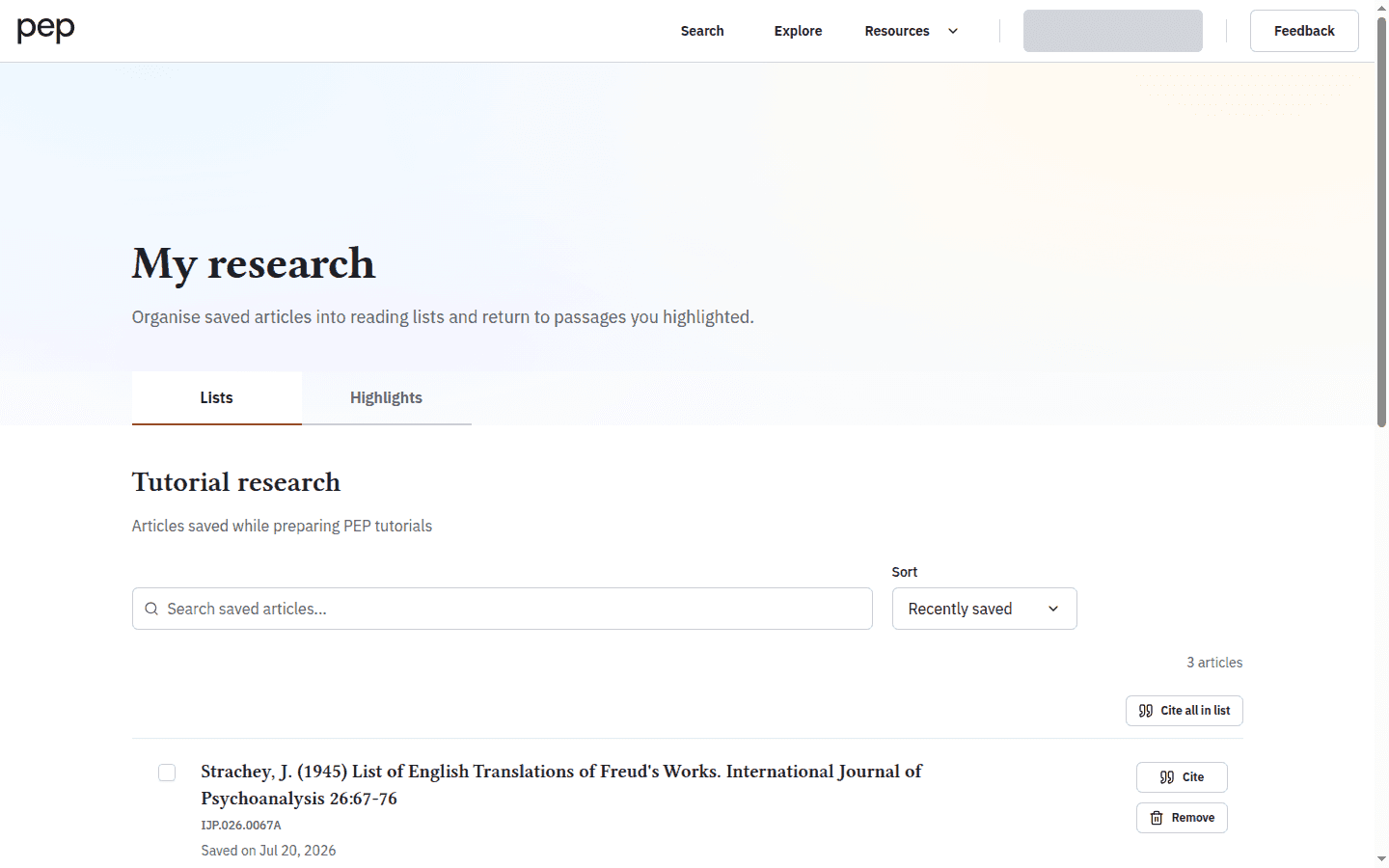
You can search within a populated list and change its order. This is useful when a broad project list has grown beyond a single screen.
Edit, remove or delete carefully
Use Edit on the Lists page to change a custom list’s name or description. Remove on a list detail removes that article from the current list; it does not remove the document from PEP or from another list that also contains it. PEP offers Undo immediately after a successful removal.
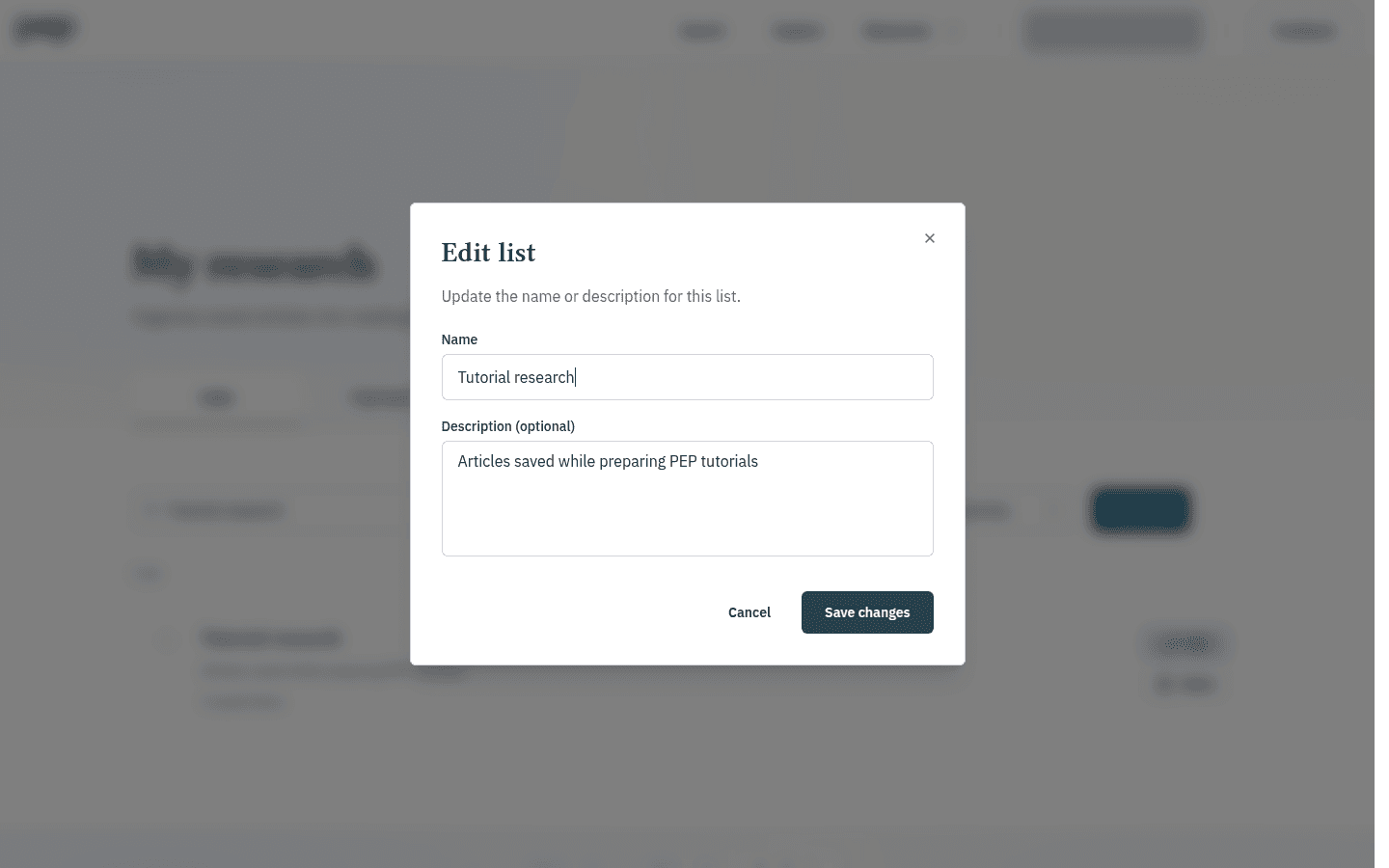
Delete removes a custom list after confirmation and cannot be undone. Check the list name and contents before confirming. Your default Reading list is identified separately and should be kept as the automatic destination for newly saved work.
Next steps
You can now save an individual article, organise selected results and return to a project list. Continue with My Research: Highlights and Notes to work at passage level, or open Downloading and Citing Content for a fuller explanation of citation formats. Refining and Using Search Results shows how to assemble a useful group before saving it.