Find your bearings in the reader
When you open an article or chapter, PEP places the text at the centre of a desktop reader. Bibliographic details and the document title appear above the text, while Save, Download and Cite are grouped as Article actions. The vertical toolbar on the left opens the panels that help you move around and investigate the document.
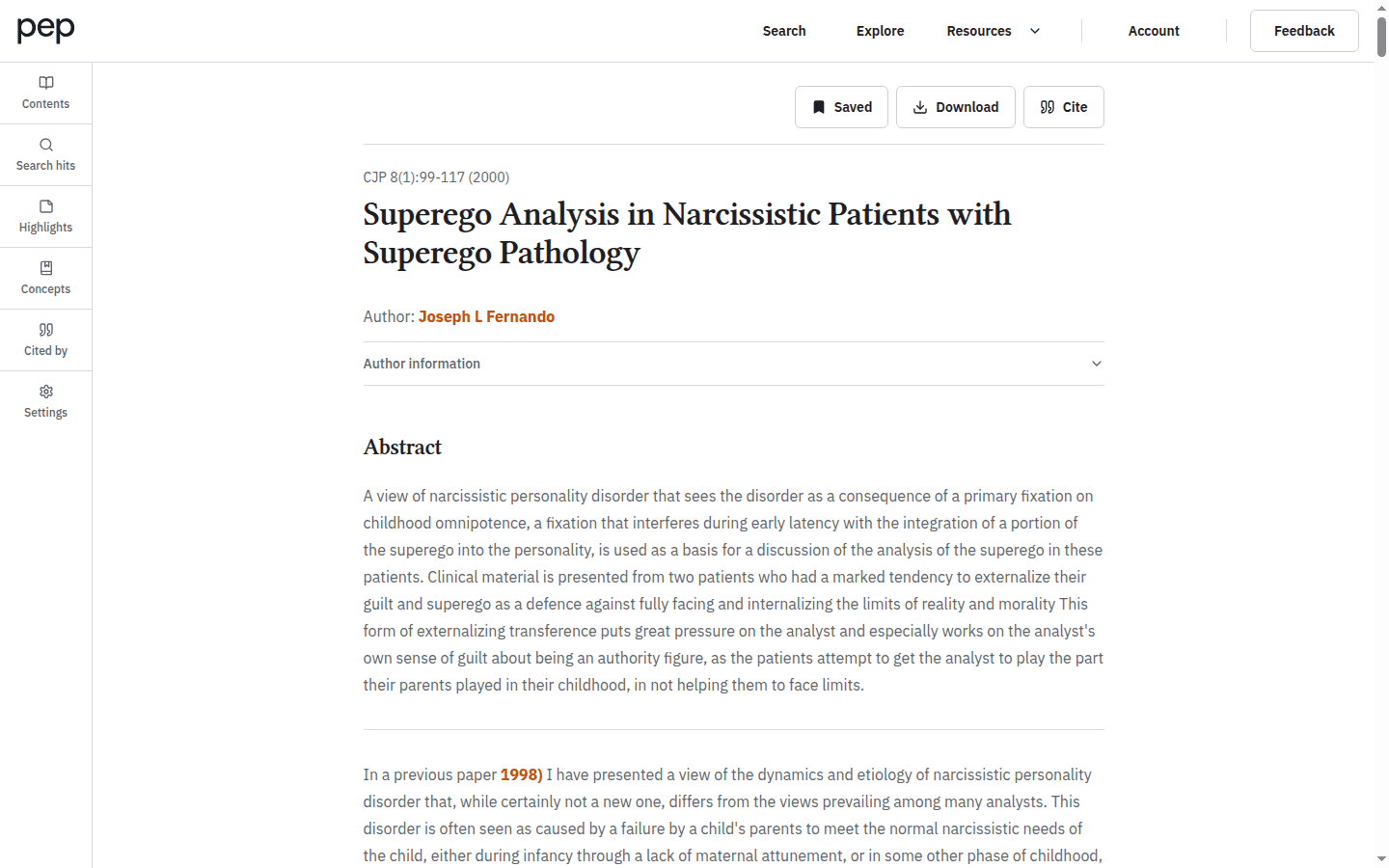
Notice that the available text still depends on your access. If PEP displays Full text unavailable, you can use the bibliographic details and any visible material, but you will need suitable personal or institutional access to read the complete document.
Move through the document and its volume
Open Contents to see the surrounding volume and the structure of the current document. The active title is identified in the list, and its section headings appear beneath it when a detailed contents structure is available.
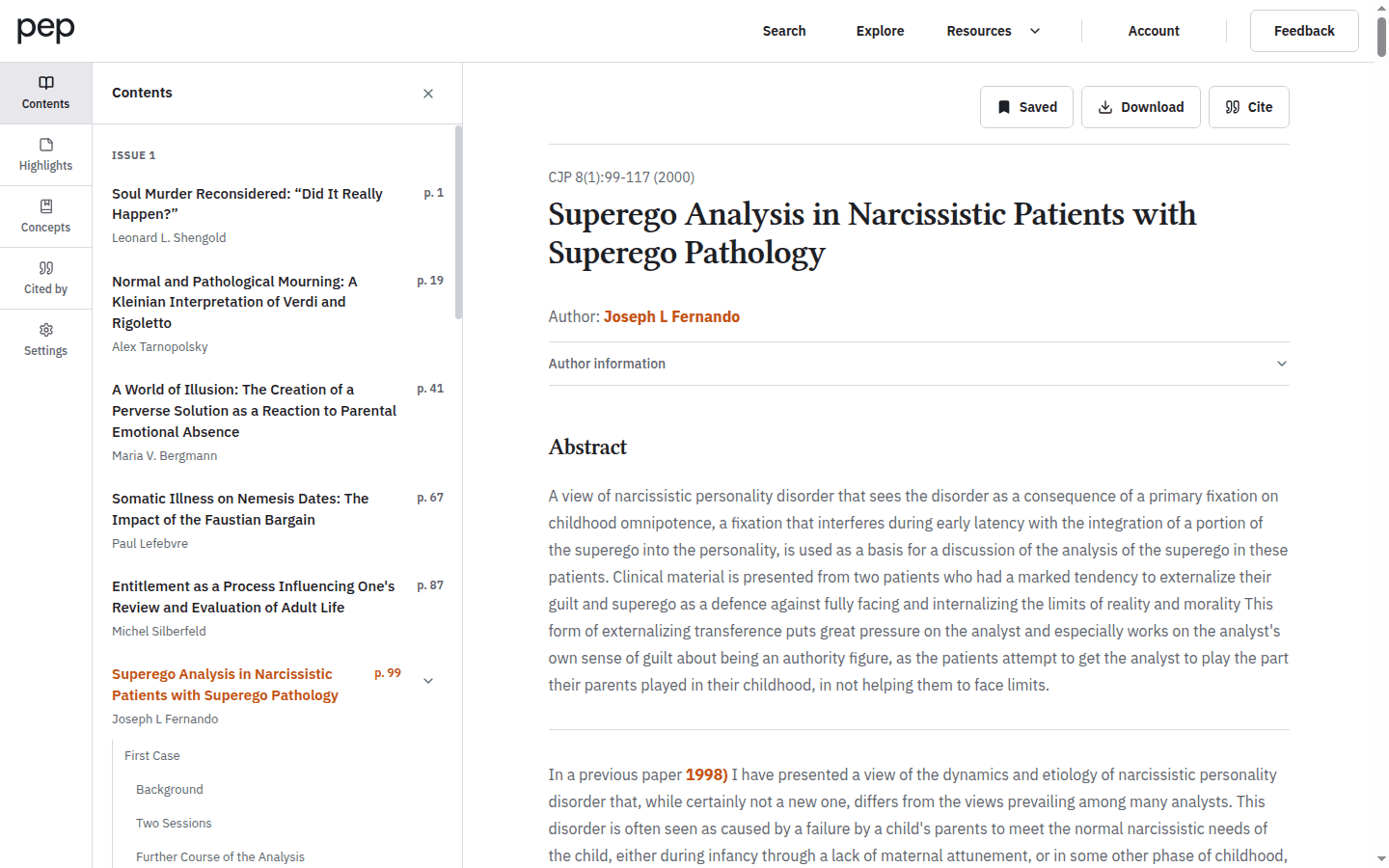
Select a section heading to move directly to that part of the text. Select another document title when you want to leave the current item and continue through the volume. This is useful when a chapter or article makes more sense in its published context.
Revisit the search that brought you here
If you open a document from a PEP search, the reader can show Back to search results above the document and Search hits in the left toolbar. Open Search hits to review the matching passages carried into the reader.
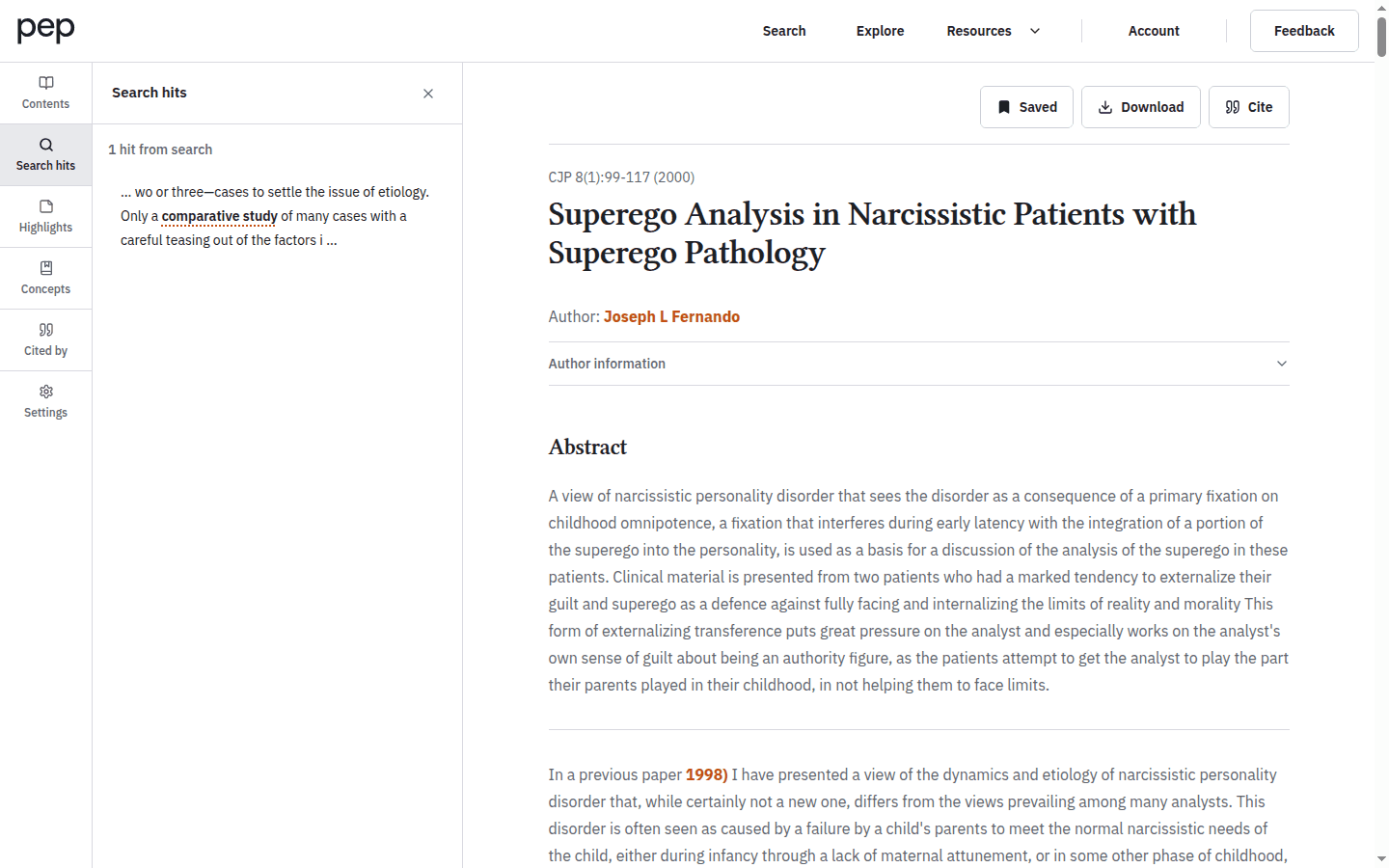
Each item contains enough surrounding text to help you recognise the match. Select a hit and PEP moves to it in the article. Search hits appears only when the document has been opened with suitable search context; it is not shown when you arrive directly without matching passages.
Use Back to search results when you want to compare this document with the rest of the result set. This preserves the route back to the search instead of asking you to construct it again.
Follow references without losing their meaning
Bibliography entries may contain a Read action when PEP can identify a primary archive record. Some entries also offer More on PEP with a number in parentheses. Open it to see additional PEP records that match that particular reference.
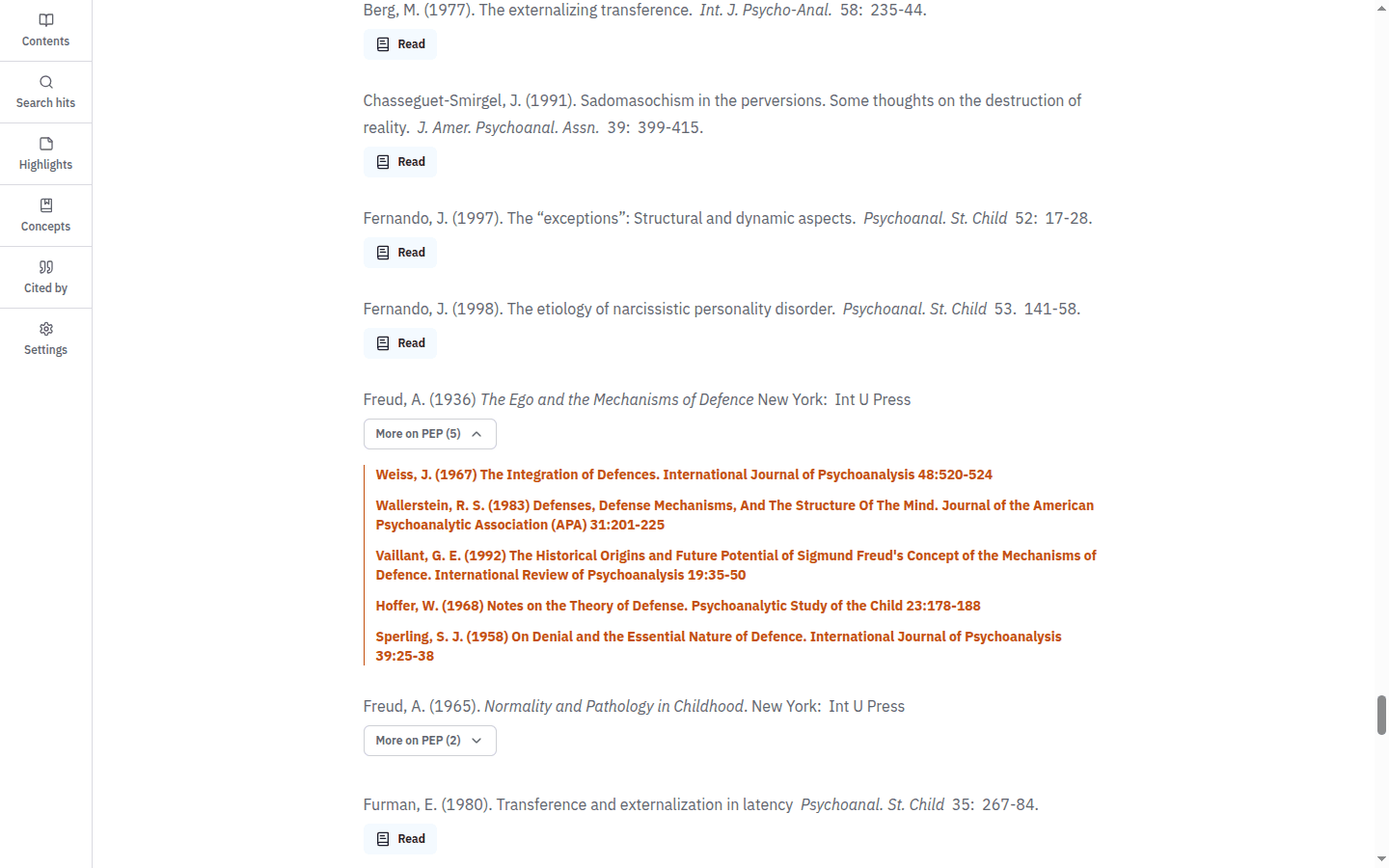
External links such as a DOI may also be present when the source data supplies them. Check the label and bibliographic details before following a match, particularly when several editions or records are available.
More on PEP is a reference-matching tool inside the bibliography. It does not mean that PEP has judged the listed records to be generally similar to the article.
Investigate concepts and citations
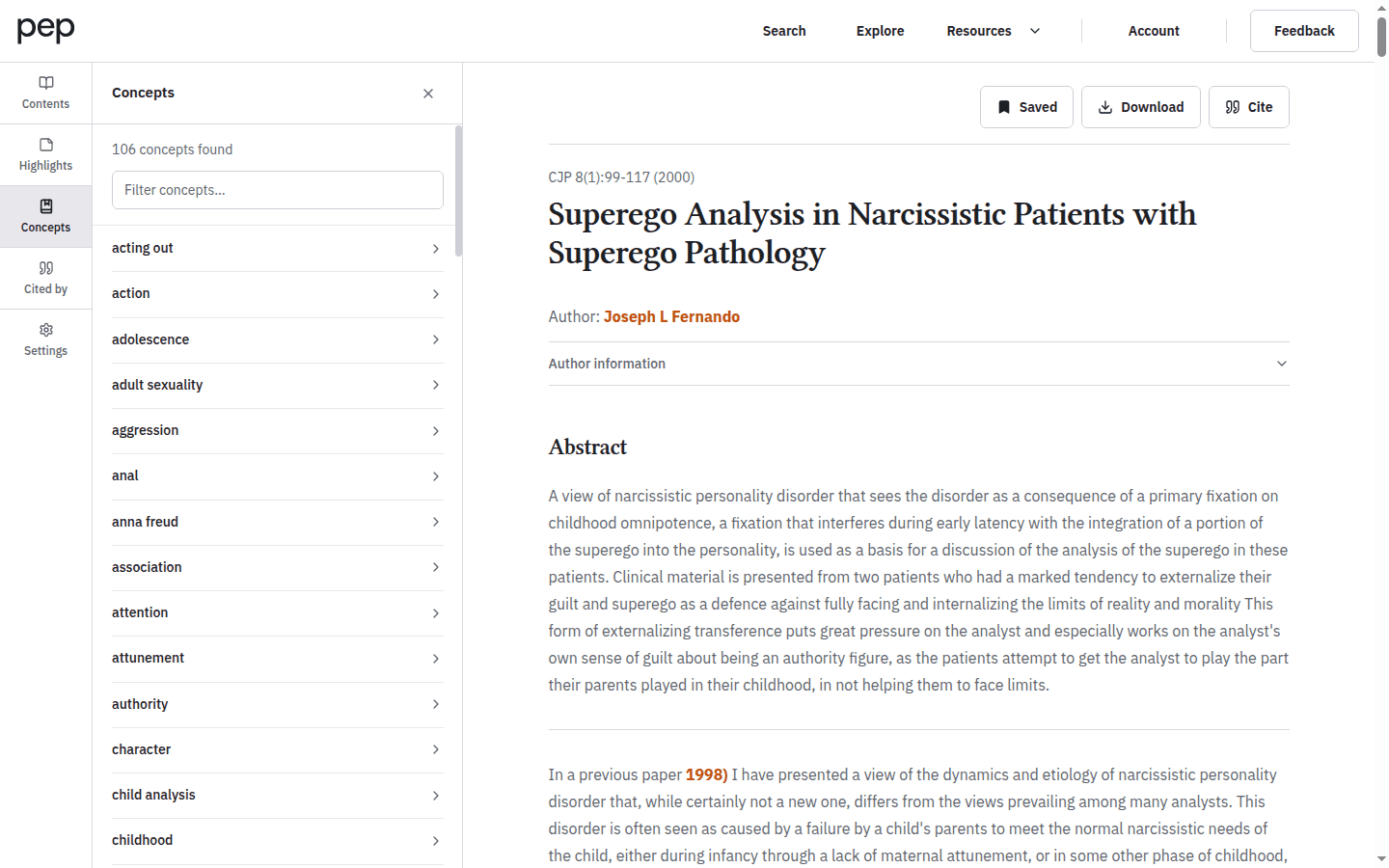
Open Concepts to see glossary terms detected in the current document. Use Filter concepts when the list is long, then select a term to open its glossary results.
Next, open Cited by to see PEP documents that reference the item you are reading. Select a record to open it, or use the panel’s See all citations link when it is available.
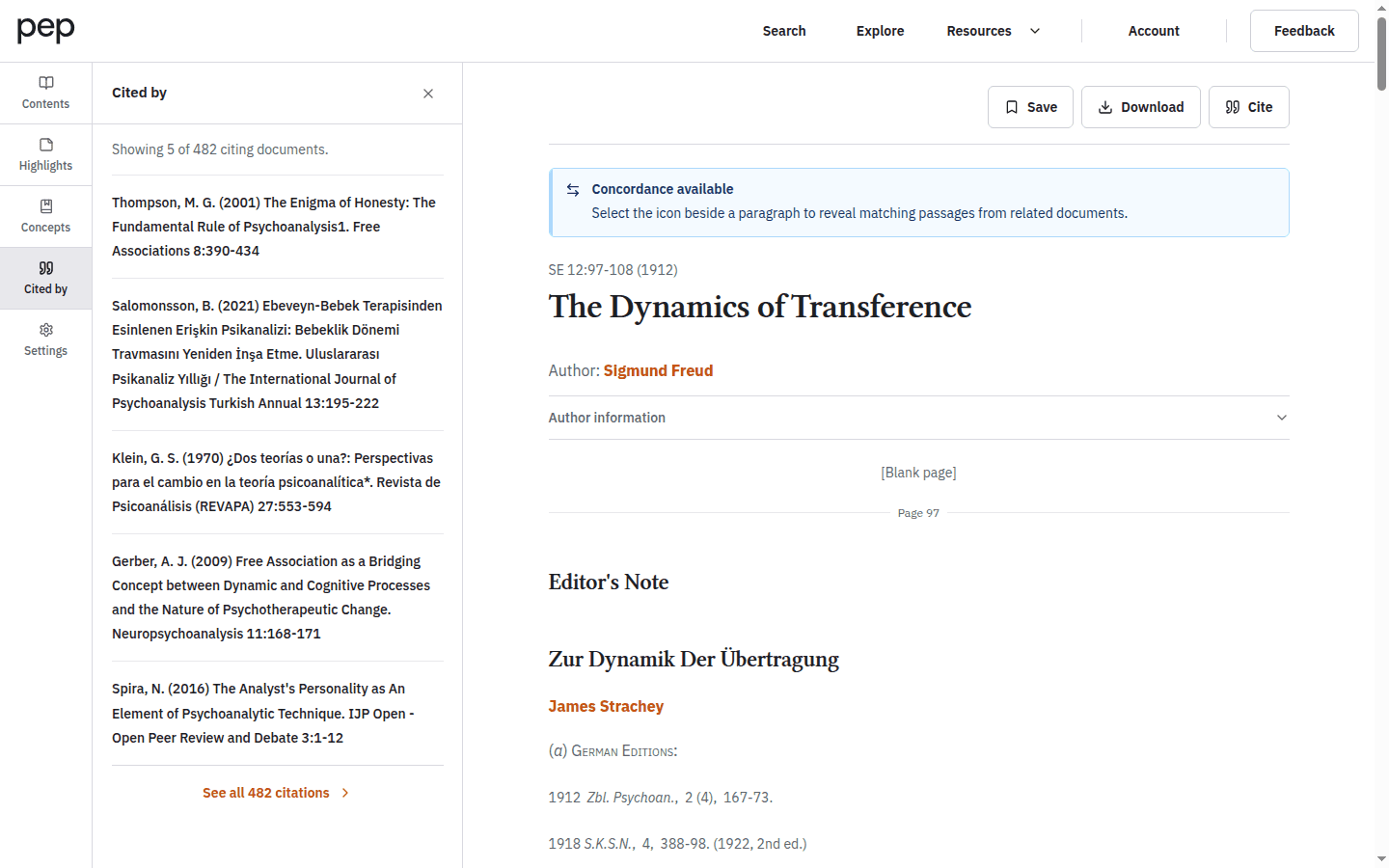
An empty panel is also meaningful: it tells you that PEP did not find a corresponding set for this document. Citation and glossary coverage varies by record, so treat these panels as routes through the indexed data rather than a complete account of the literature.
Act on a selected passage
Select a short passage in the article to reveal the text-selection toolbar. Its actions let you Highlight the passage, start a PEP search for the selected words, or look them up in the glossary.
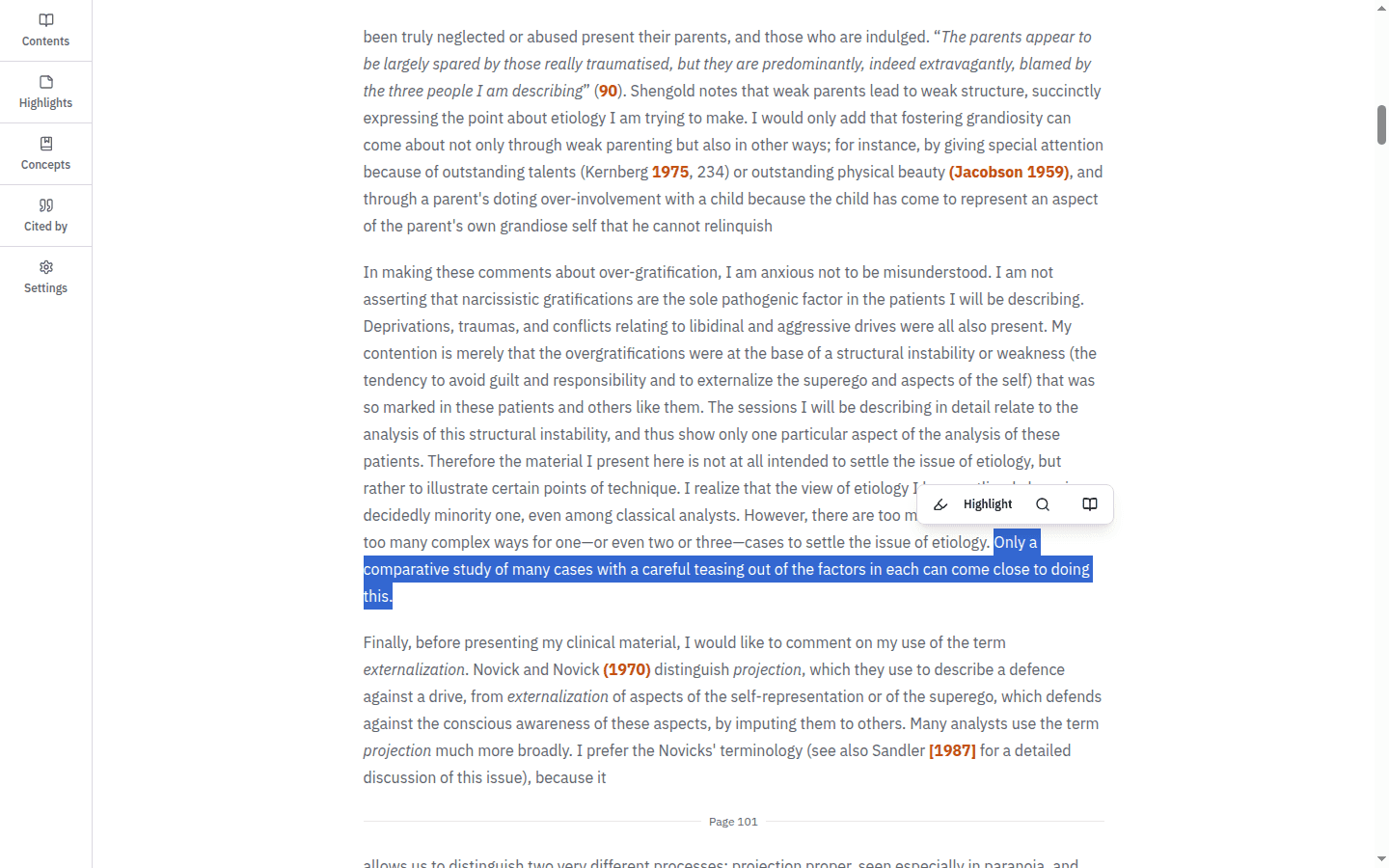
Highlight requires you to be signed in because the passage is saved to My Research. The search and glossary actions leave the document for their respective result pages. Use them when a phrase raises a question that is better answered across the archive.
Adjust the reading display
Open Settings in the left toolbar to reveal Reader settings. You can choose a Small, Medium or Large Font size and Reader width, then select the Standard or OpenDyslexic Font family.
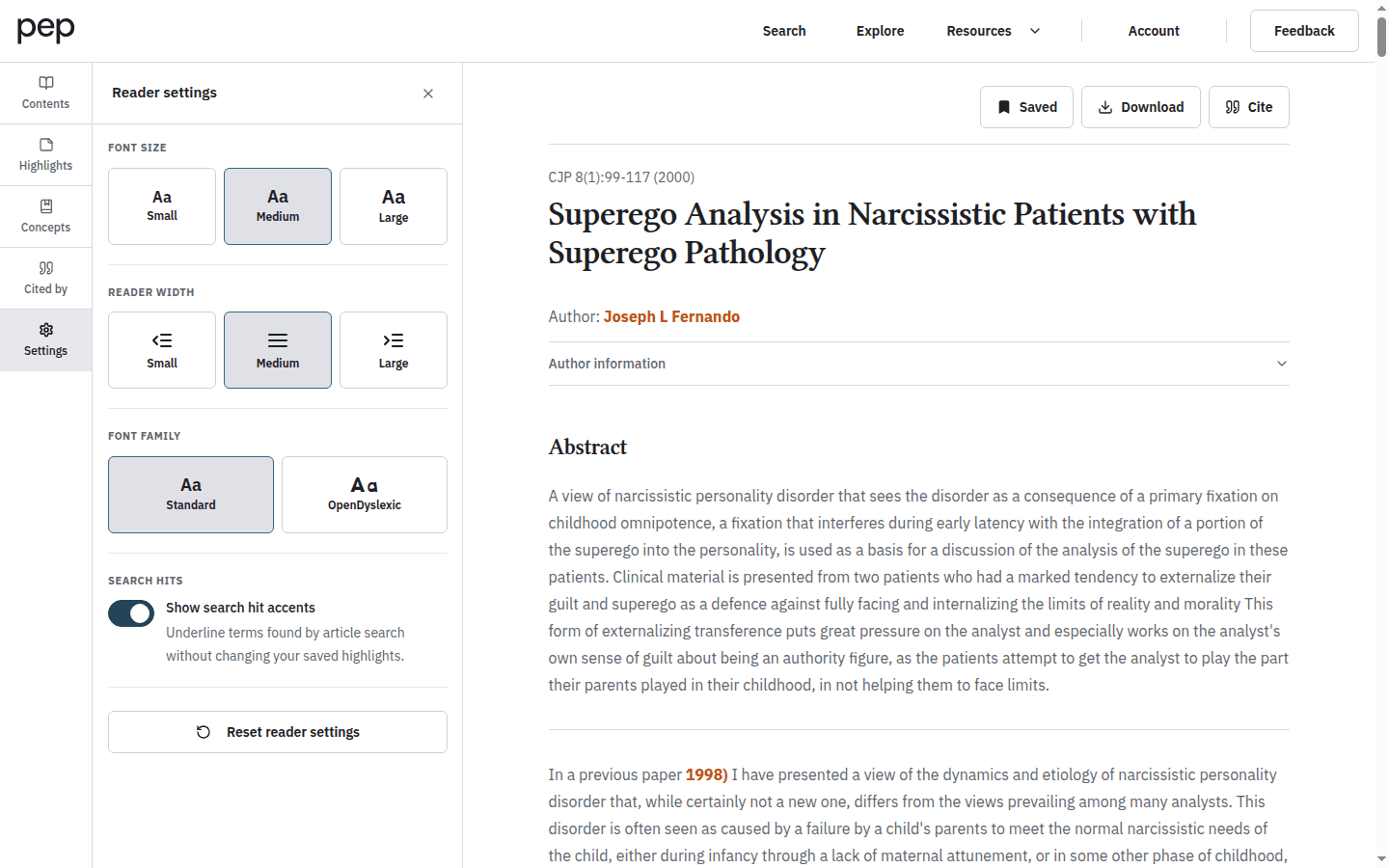
Show search hit accents controls the underline used for terms found through article search. It does not alter your saved highlights. Select Reset reader settings when you want to return all reader controls to their defaults.
These controls are specific to document reading. The site-wide light or dark theme remains in the footer.
Recognise tools that appear only when relevant
Some documents have additional relationships. When mapped passages are available between related Freud editions, PEP displays Concordance available. Select the icon beside a mapped paragraph to reveal the matching passage or passages.
IJP Open articles can also show a Discuss control for their article discussion. This is conditional and is not part of every reader. Sign in if the discussion panel asks you to do so, and remember that a discussion is separate from your private highlights and notes.
Next steps
Continue with Downloading and Citing Content to take a document or reference into another workflow. Using the Psychoanalytic Glossary develops the Concepts and selection-lookup routes, while My Research: Highlights and Notes explains how to save and revisit passages.