Keep the passage as well as the article
Saving an article records the whole work. A highlight records the particular passage that matters to you, and an attached note can preserve why it matters. Highlights and notes are private to your signed-in account.
Highlight text in the reader
Open a document for which full text is available, then select a meaningful passage. The text-selection toolbar appears beside the selection.
- Select Highlight.
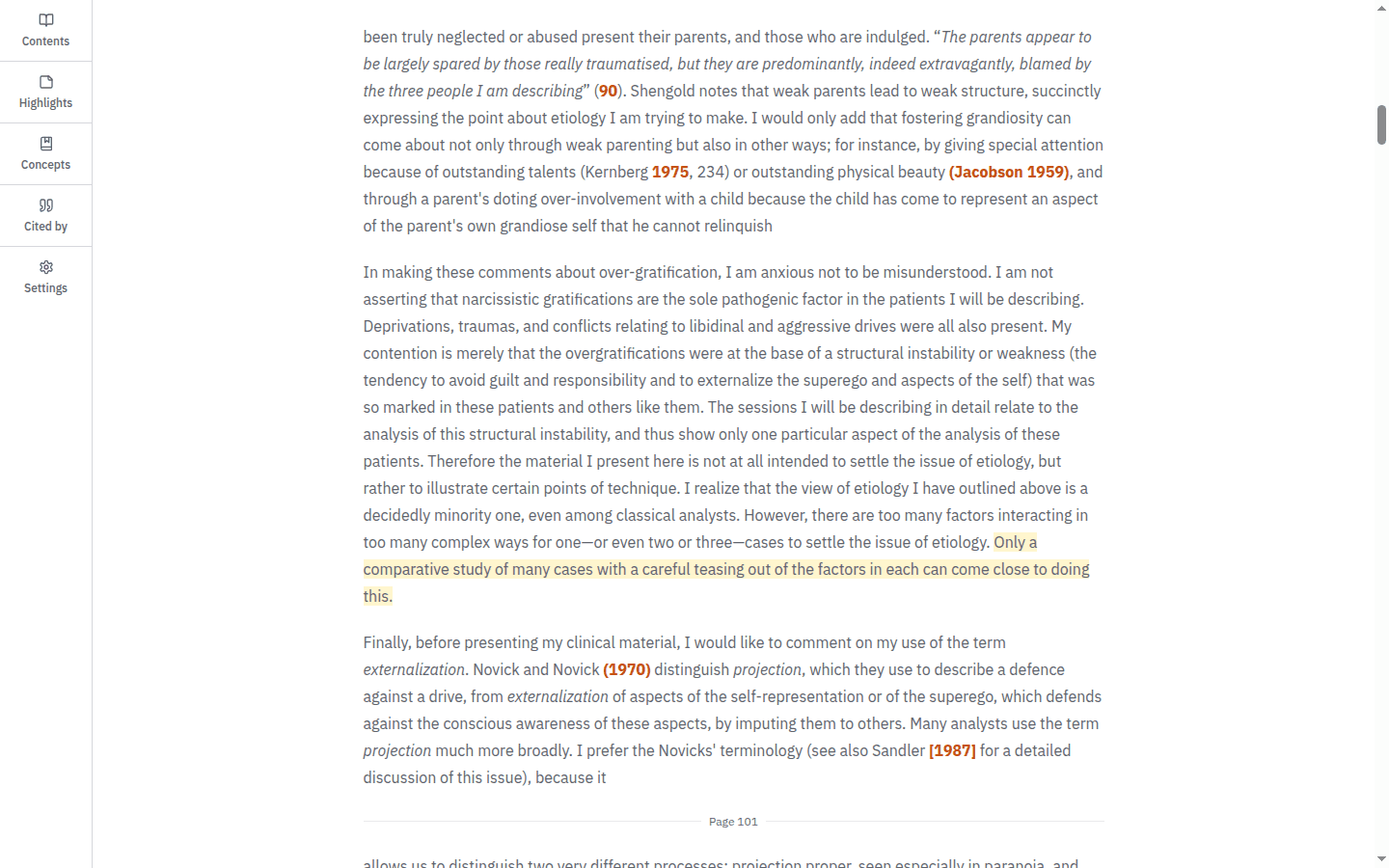
- PEP saves the passage and marks it with the highlight colour.
- Open Highlights in the reader sidebar to see the saved passage.
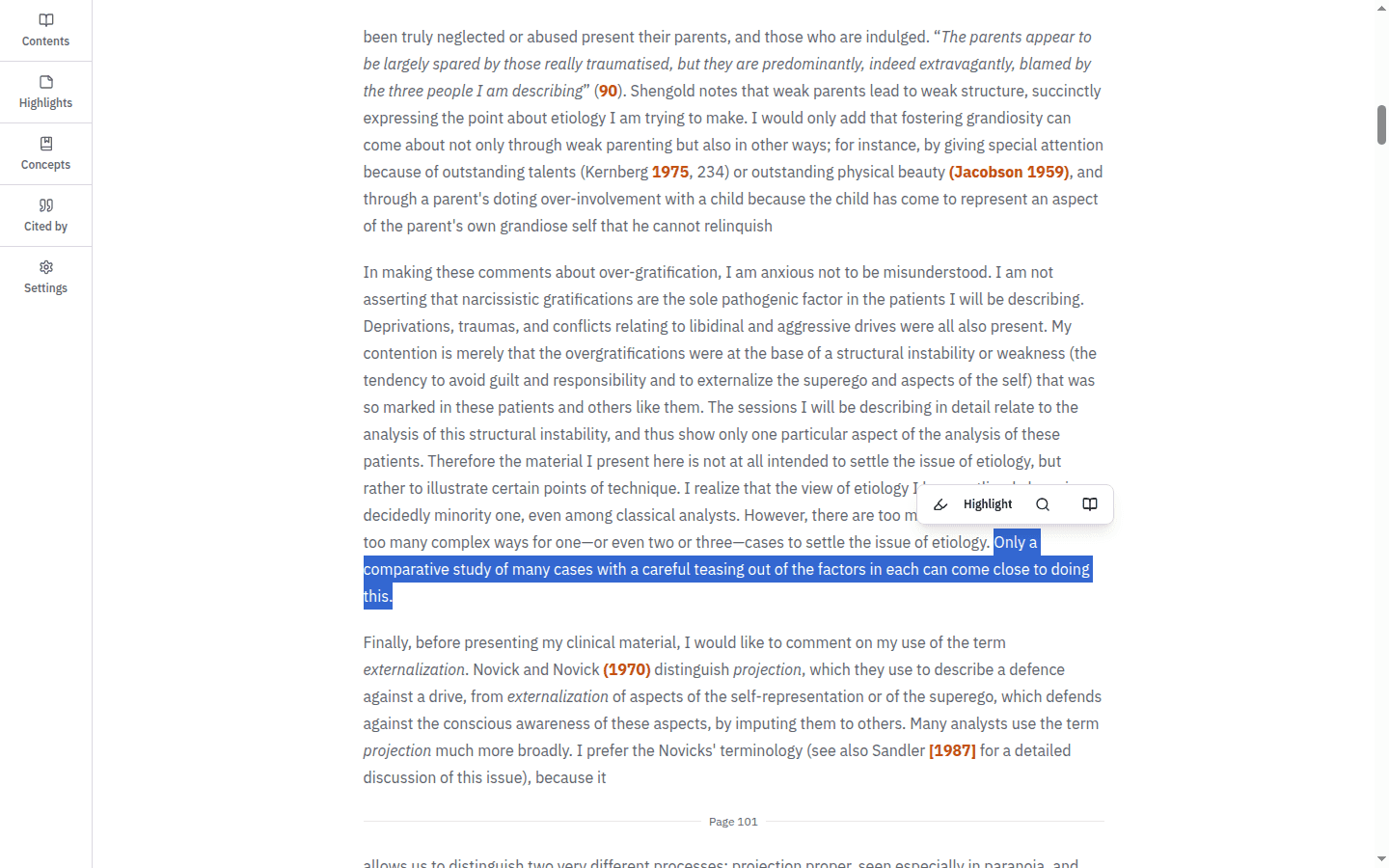
The other selection actions can search the PEP archive for the selected text or look it up in the glossary. They do not create a saved highlight.
Use the reader Highlights panel
Select Highlights in the reader sidebar. The panel lists highlights saved in the current document and provides Search highlights when the list grows.
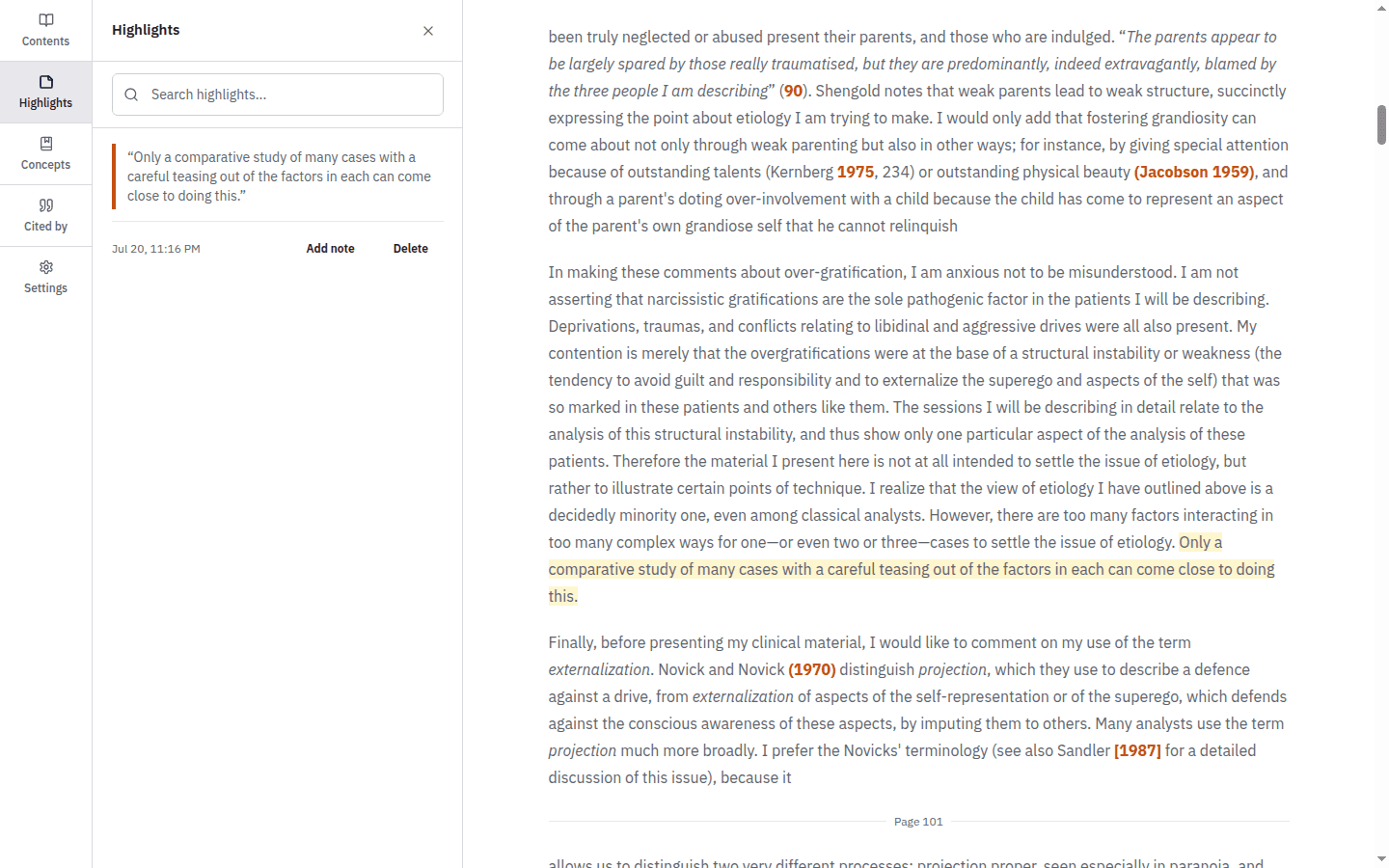
Select a highlight in the panel to return to its position in the article. Notice that this connects the saved excerpt to its surrounding argument rather than treating it as an isolated quotation.
Add a private note
Select Add note beside a saved passage. Enter a brief explanation, question or reminder, then save it. The control changes to Edit note once a note is attached.
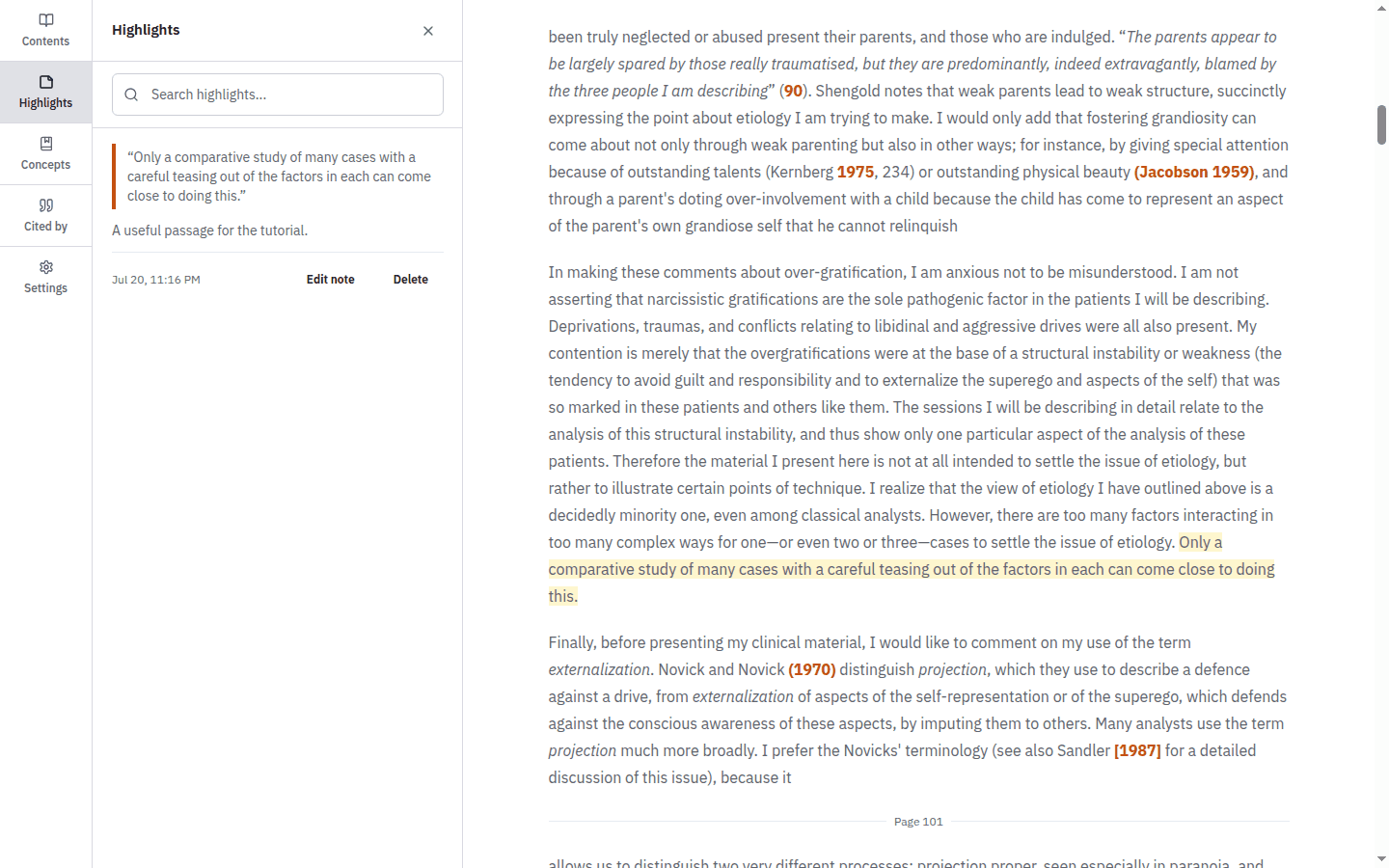
Use Edit note when your interpretation develops. Deleting a highlight also deletes its attached note, so check the passage before confirming a deletion.
Review highlights across the archive
Open your account menu, select My research, then open the Highlights tab. This page brings together saved passages from different documents.
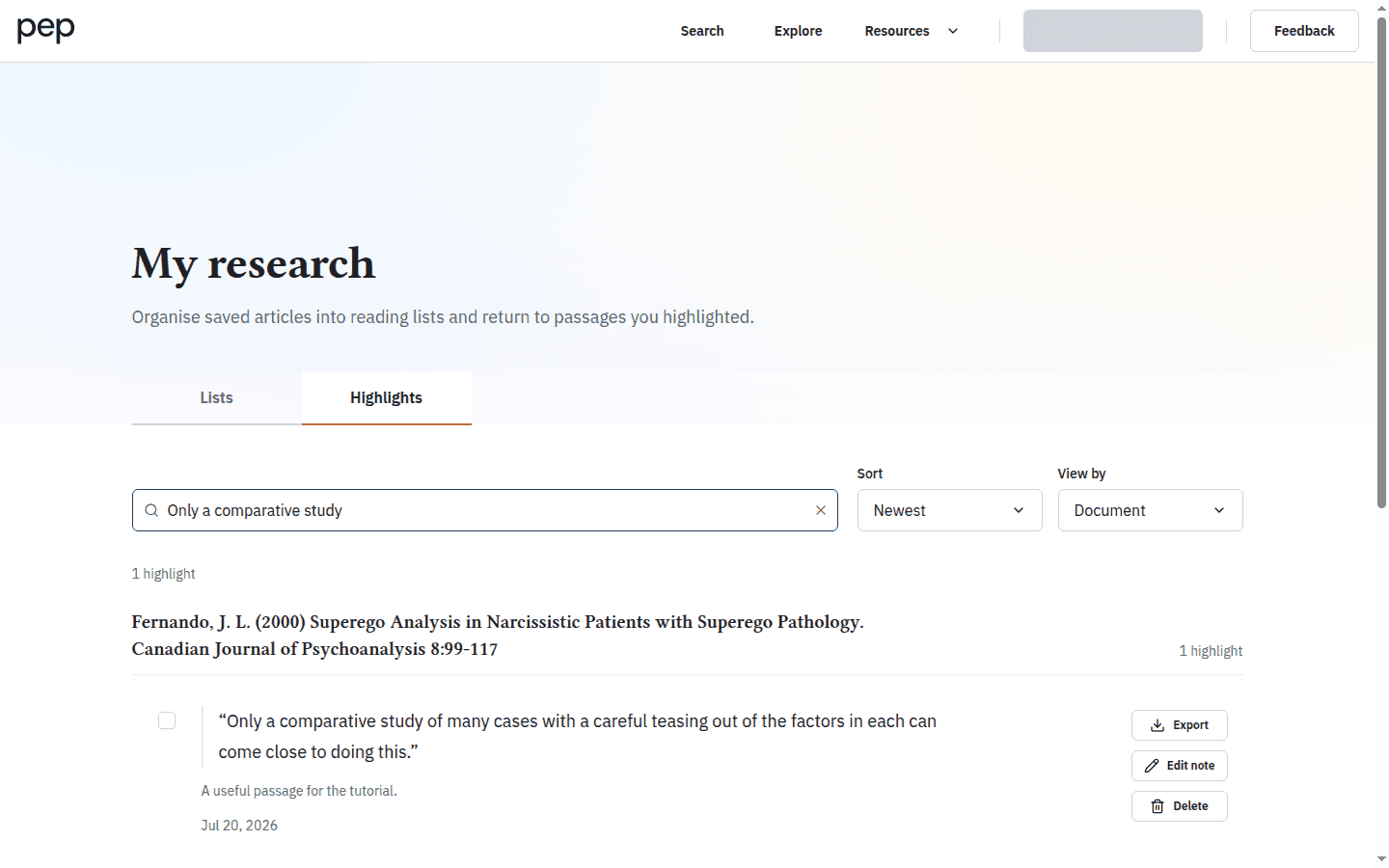
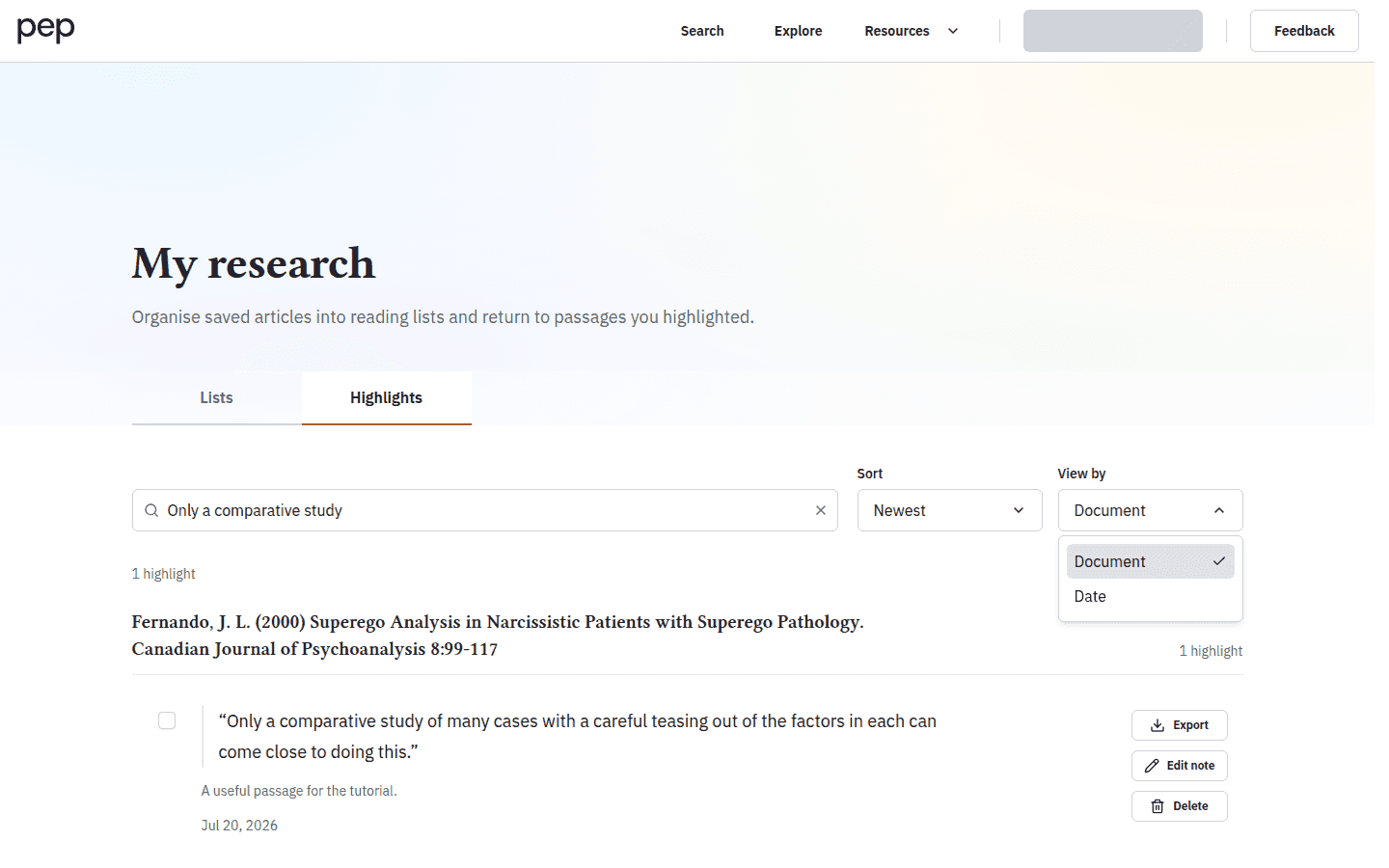
Use Search highlights to find words in passages or notes. View by can group the collection by Date or Document, while Sort offers Newest and Oldest. Choose the combination that matches the task: grouping by Document restores article context, while Date helps you retrace a recent research session.
Select a passage to reopen its article and move to the saved highlight. This is useful when a short excerpt needs to be checked against the surrounding paragraph before you quote or paraphrase it.
Edit, export and manage highlights
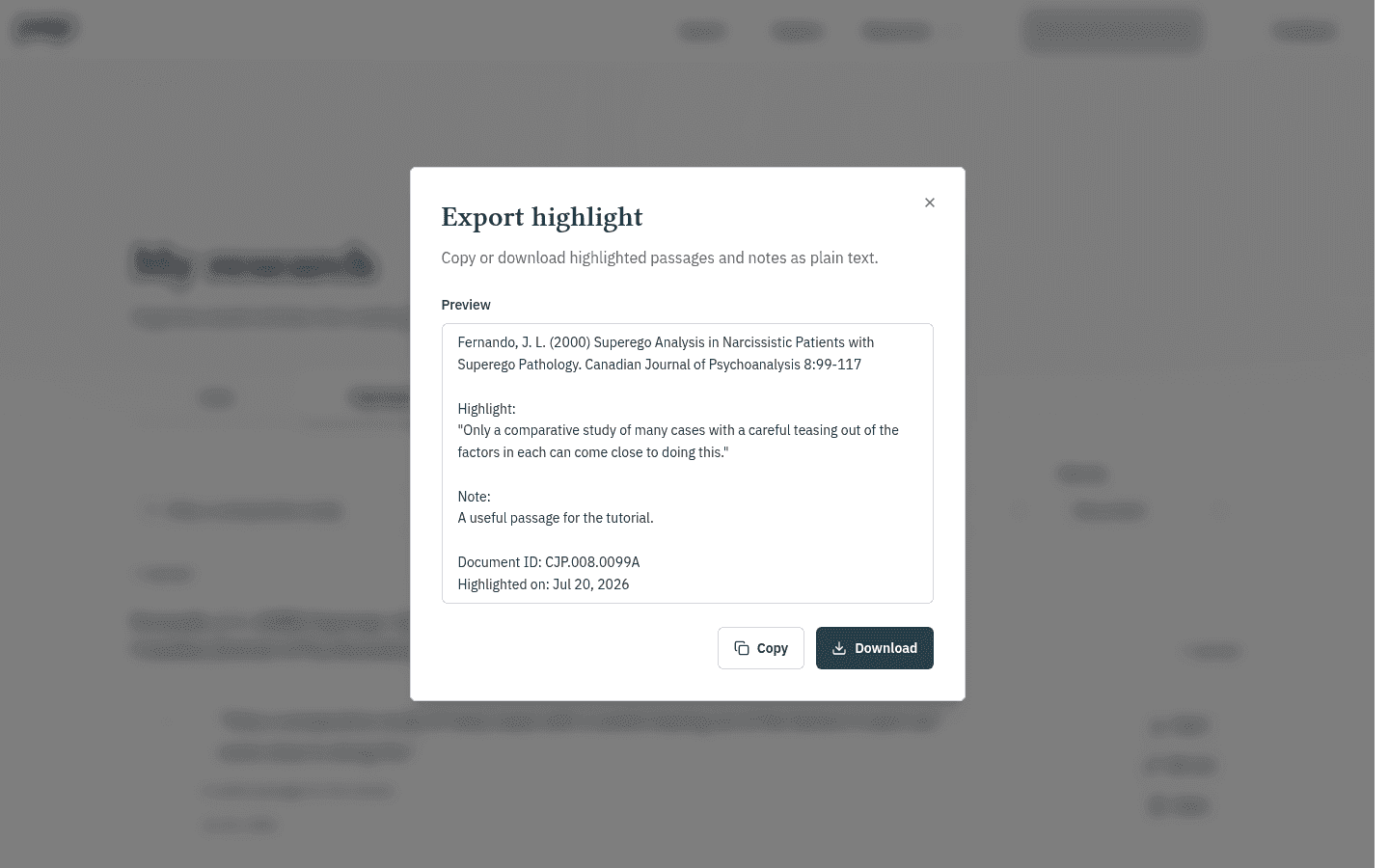
Each highlight offers Export, Add note or Edit note, and Delete. Export opens a plain-text preview containing the passage and any note; use Copy or Download to take it into your own research file.
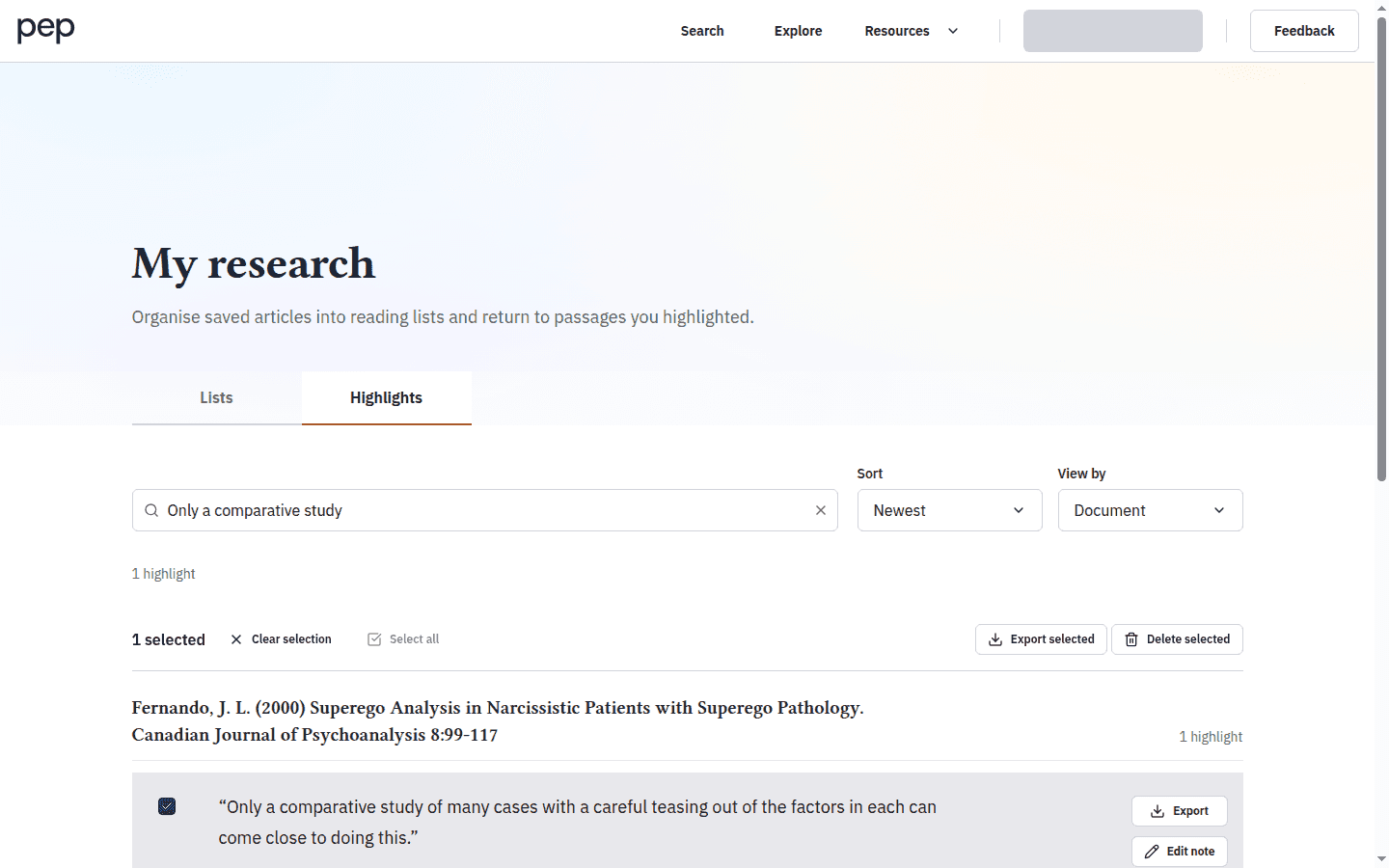
Select several visible highlights to reveal Export selected and Delete selected. Exporting a deliberate selection can create a focused set of notes for a paper or seminar. Deletion removes the highlights and their attached notes after confirmation and cannot be undone.
Next steps
You can now preserve a passage, explain its importance and find it again across the archive. Reading and Navigating a Document covers the other reader panels, while Using the Psychoanalytic Glossary explains how to investigate a selected concept. Return to My Research: Saving and Organising Articles when you want to organise complete documents as well as passages.