Choose the kind of discovery you need
Discovery is different from searching for a known author or concept. You may want an editorial starting point, a recent product update, a frequently consulted document or a citation trail. PEP gives each of these questions its own route.
Begin on the home page. Depending on the current editorial rotation, you may see a Featured article, Recently featured items, Featured collections or Featured images. Select a title or Read article to continue.
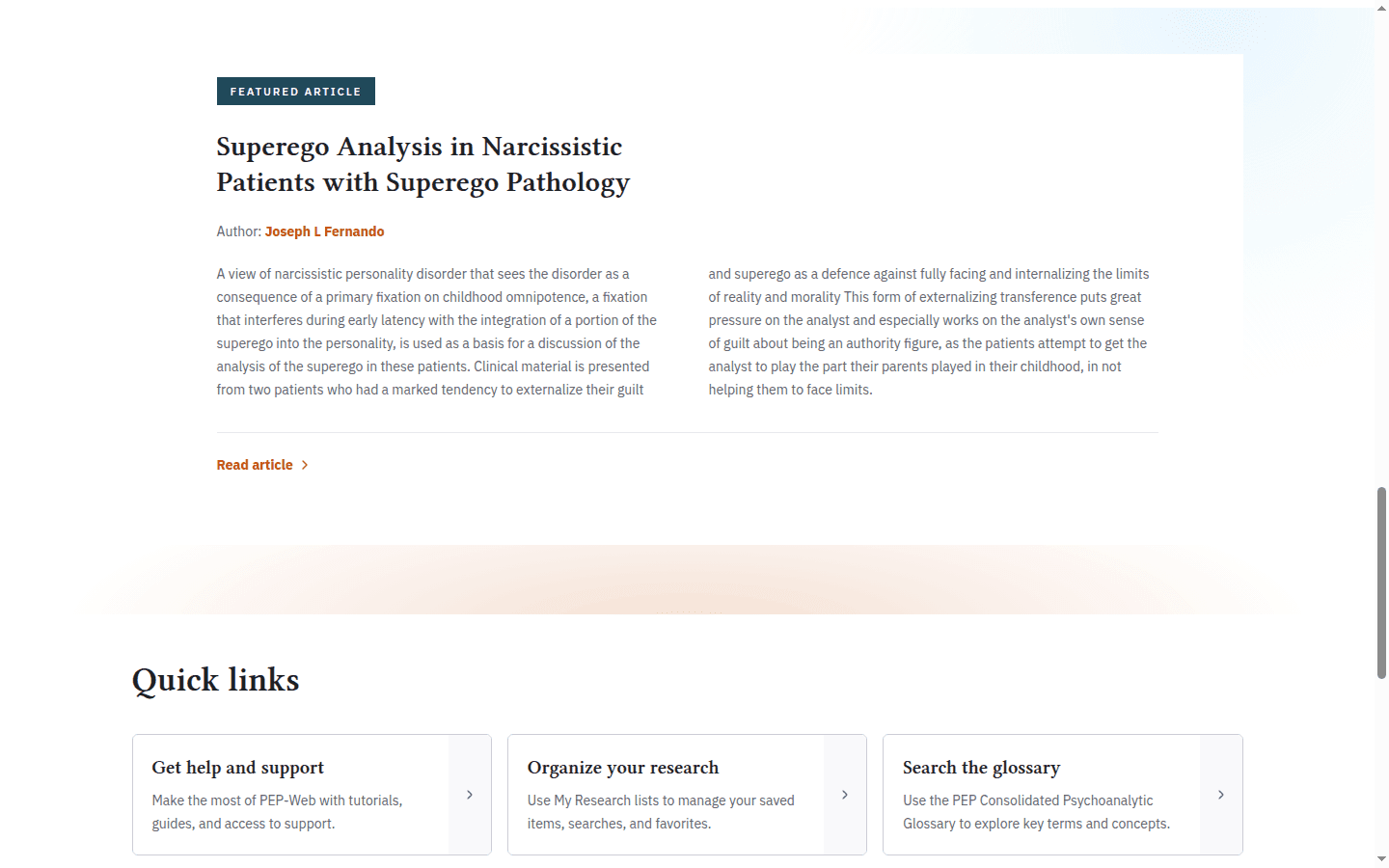
The featured content changes over time, so concentrate on the section labels and actions rather than expecting the same title shown in this tutorial.
Follow product and service updates
Open Resources and select What’s new. The overview can contain Featured updates followed by Browse all updates. Cards may cover product changes, service notices, editorial announcements and other recent developments.
Use Search updates when you are looking for a particular subject. Open Sort to choose Newest, Oldest or Title.
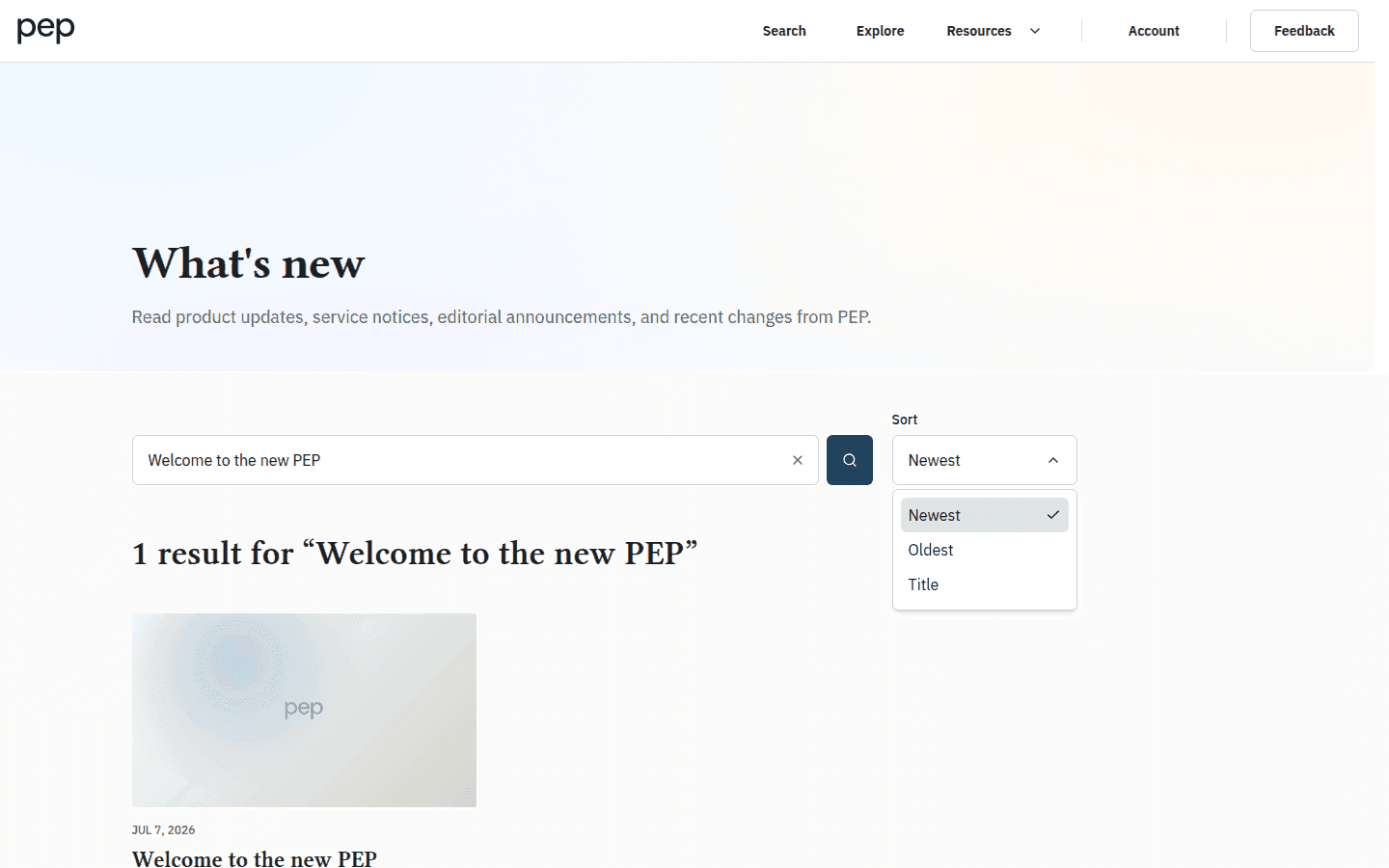
Select an update card to read its complete page. An update explains a change or notice; it is not a scholarly document in the PEP archive.
Explore frequently viewed documents
Select Most viewed from Resources to open that Usage statistics tab directly when you want to review documents consulted frequently during a defined period.
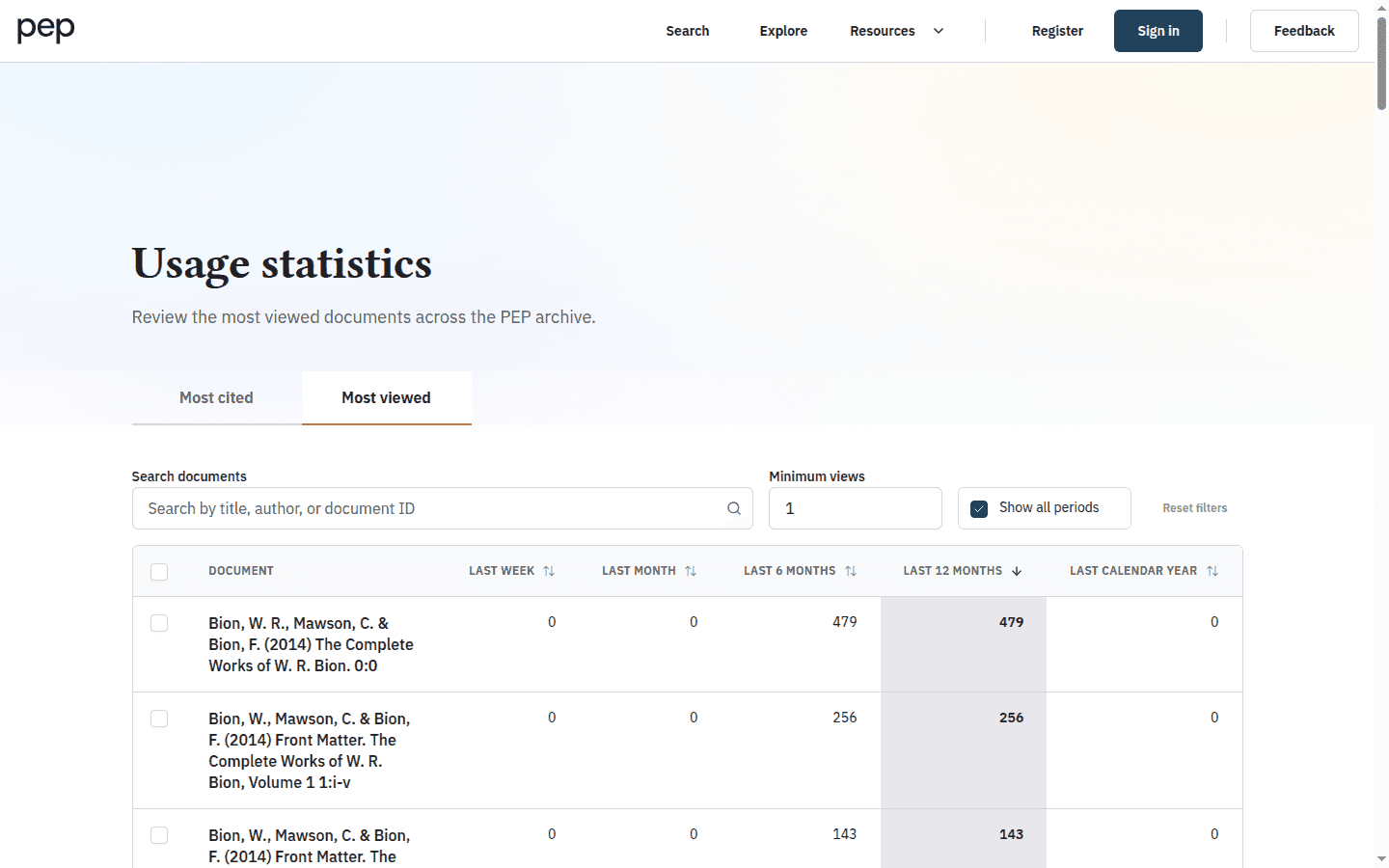
Use Search documents to narrow by title, author or document ID. Minimum views removes rows below a threshold. Show all periods displays the available period columns, including Last week, Last month, Last 6 months, Last 12 months and Last calendar year. Select a column heading when you want that period to determine the order.
Viewing activity can identify material that readers are consulting, but it does not measure scholarly quality or relevance to your question.
Explore frequently cited documents
Choose the Most cited tab to review citation counts recorded across the PEP archive. Its controls include Search citations, Minimum citations, Show all periods and Reset filters.
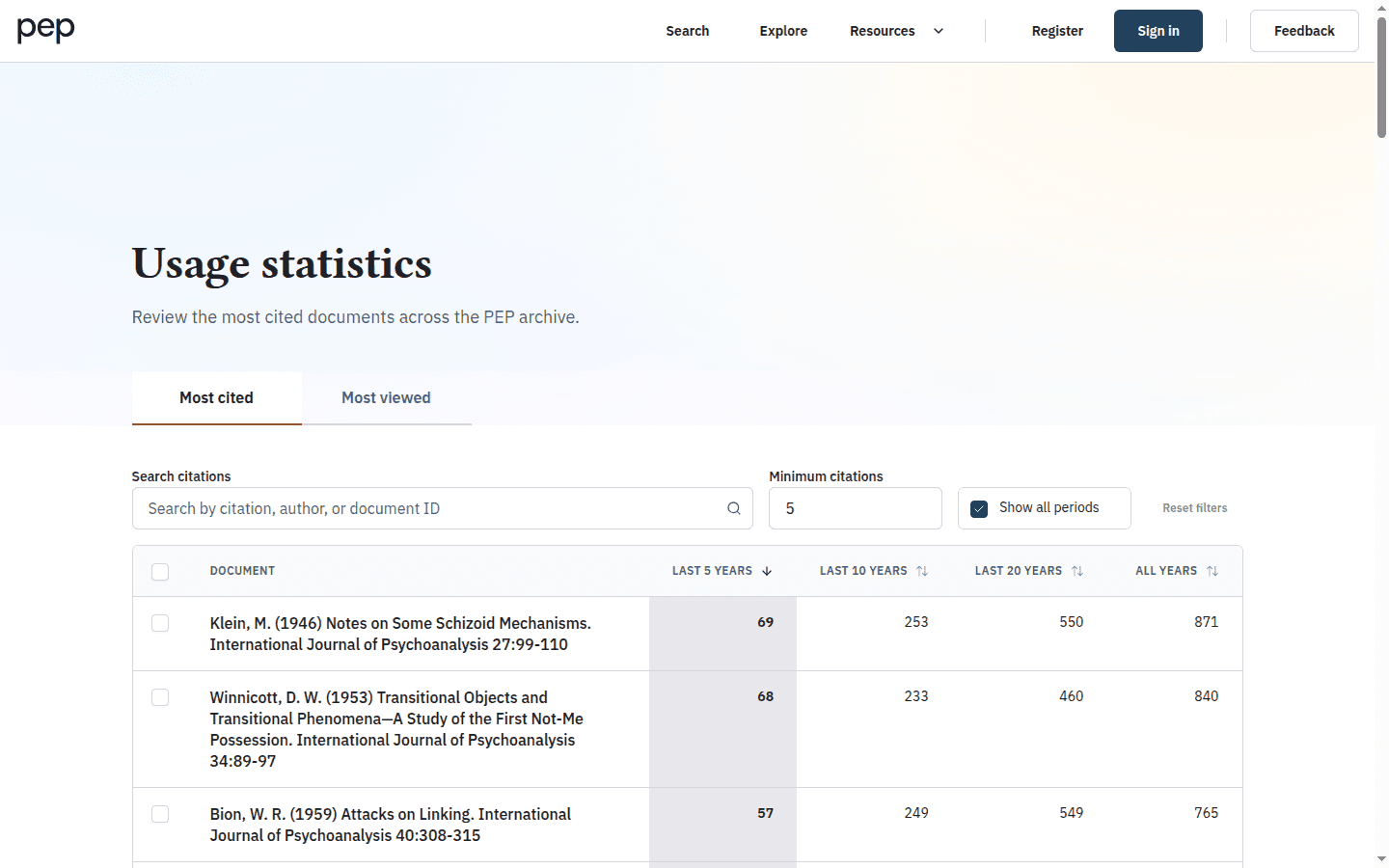
The available columns include Last 5 years, Last 10 years, Last 20 years and All years. Select a document title to open it in the reader. Use a time span that fits your question: recent citation activity and long-term citation history answer different questions.
The two statistics pages provide explicit destinations and visible measures. Use them to begin a trail, then assess the documents themselves against your research question.
Export selected statistics rows
Use the checkbox beside each row when you need a small working set from Most viewed or Most cited. The selection bar displays the number selected and offers Download CSV and Clear selection.
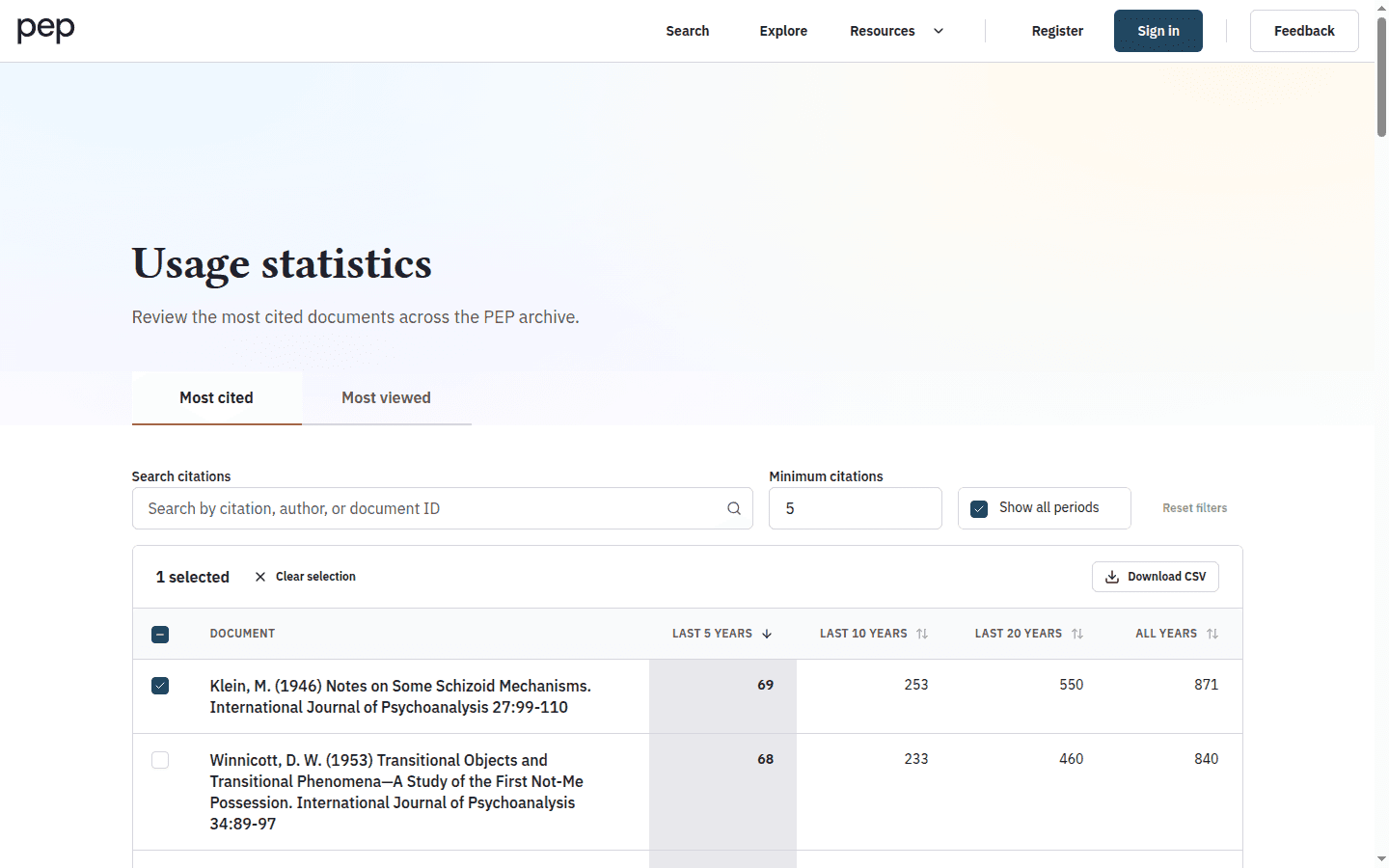
The CSV contains the selected statistics data; it does not download the documents themselves. This is useful when you want to compare a defined set outside PEP or keep a record of the metric and period you reviewed.
Follow a document’s citation trail
Statistics begin with the archive as a whole. When you are already reading a document, open Cited by in the left toolbar to see PEP records that reference it.
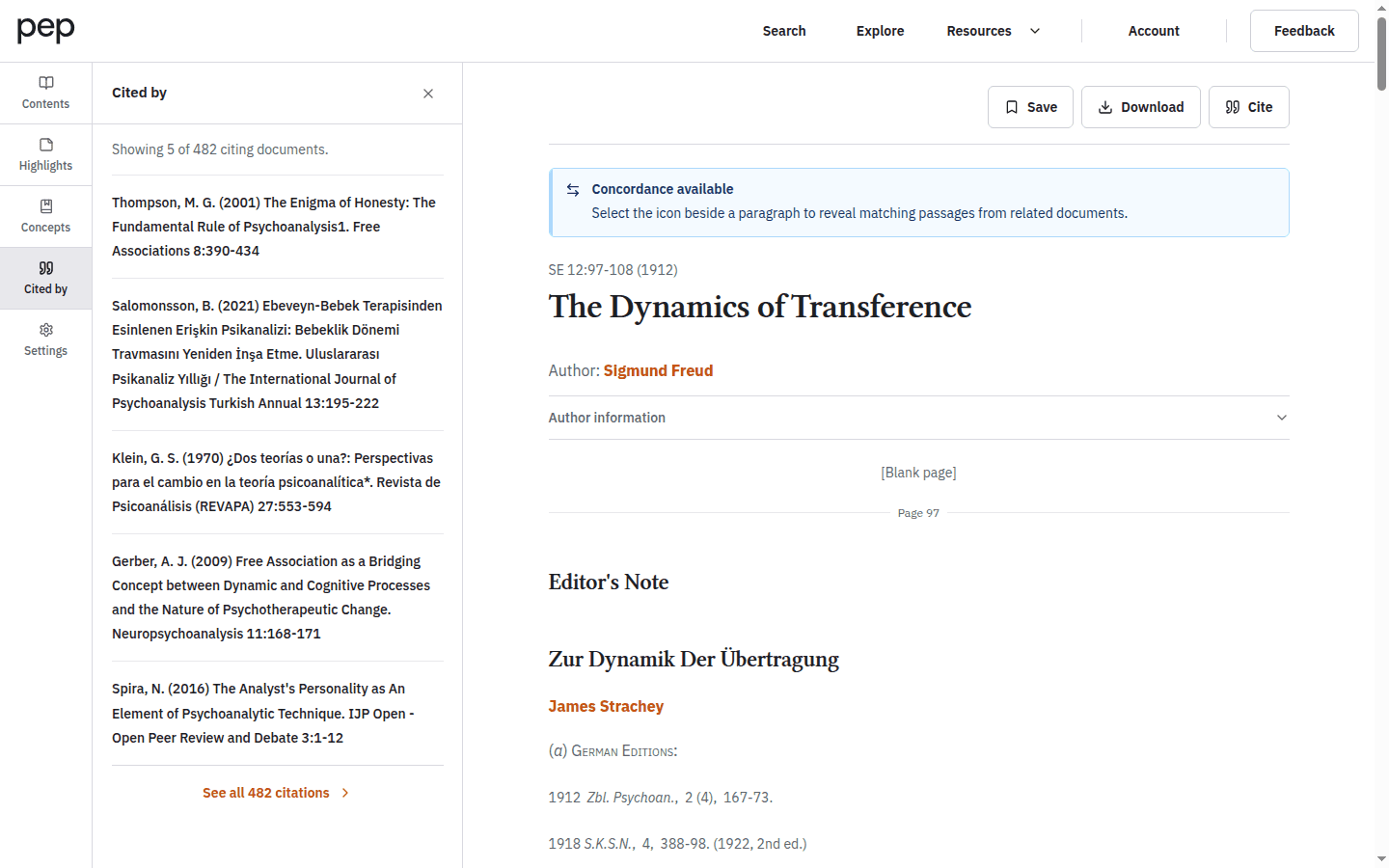
Select a citing record to read it, or use See all citations when that route is shown. No citing records found means that PEP did not return a citation set for the current document; it should not be read as proof that the work has never been cited elsewhere.
Next steps
Use Searching the PEP Archive when discovery gives you a concept or author to investigate. Reading and Navigating a Document explains the Cited by panel in its wider reader context, while Refining and Using Search Results covers citation and view sorting within a search result set.