Begin with a focused question
Searching works best when you turn a research interest into a small group of meaningful terms. A single broad word can produce an unmanageable result set, while a focused phrase gives PEP more information about what you are trying to find.
Let’s begin with work on transitional objects. Enter `"transitional objects"` in the Search field on the home page, then select Search. Quotation marks ask PEP to keep the words together as an exact phrase.

The results page shows documents that match the phrase. The set can change as the archive grows, so concentrate on the document titles and matching snippets rather than a fixed result count.
Open Advanced search
Select Advanced search below the home-page field, or select Search in the main navigation. The Advanced search page combines a general Search query with optional field rows.
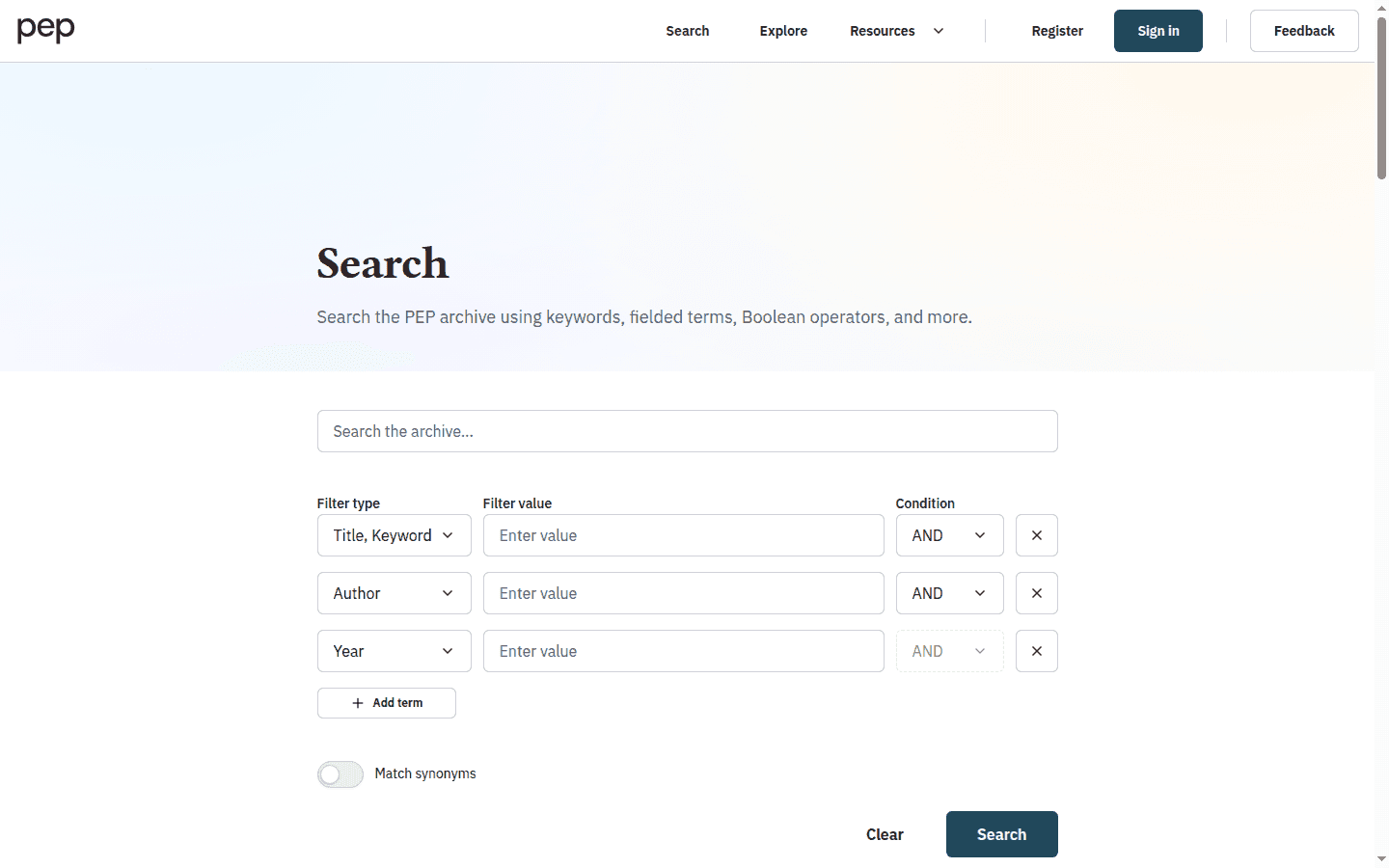
You can submit the general query by itself, use one or more complete field rows, or combine the two. Select Add term when you need another row. Select Clear to reset the form.
Each field row has three parts:
- Filter type chooses where PEP should look.
- Filter value contains the word, phrase, name or year you want to find.
- Condition joins that row to the row that follows it. The final row’s Condition is disabled because there is no later row to join.
Choose the right field
The available Filter type choices include Text; Author; Title; Abstract; Year; Keywords; Quotes; Dreams; Dialogs; References; and Title, Keywords, Abstract.
Use a narrow field when you know something about the item. For a known article, a Title row and an Author row will usually be more precise than putting both details into a general query. For a topic search, Title, Keywords, Abstract gives you a broad overview without searching every passage of full text. Choose Text when the concept may appear only in the body of a work.
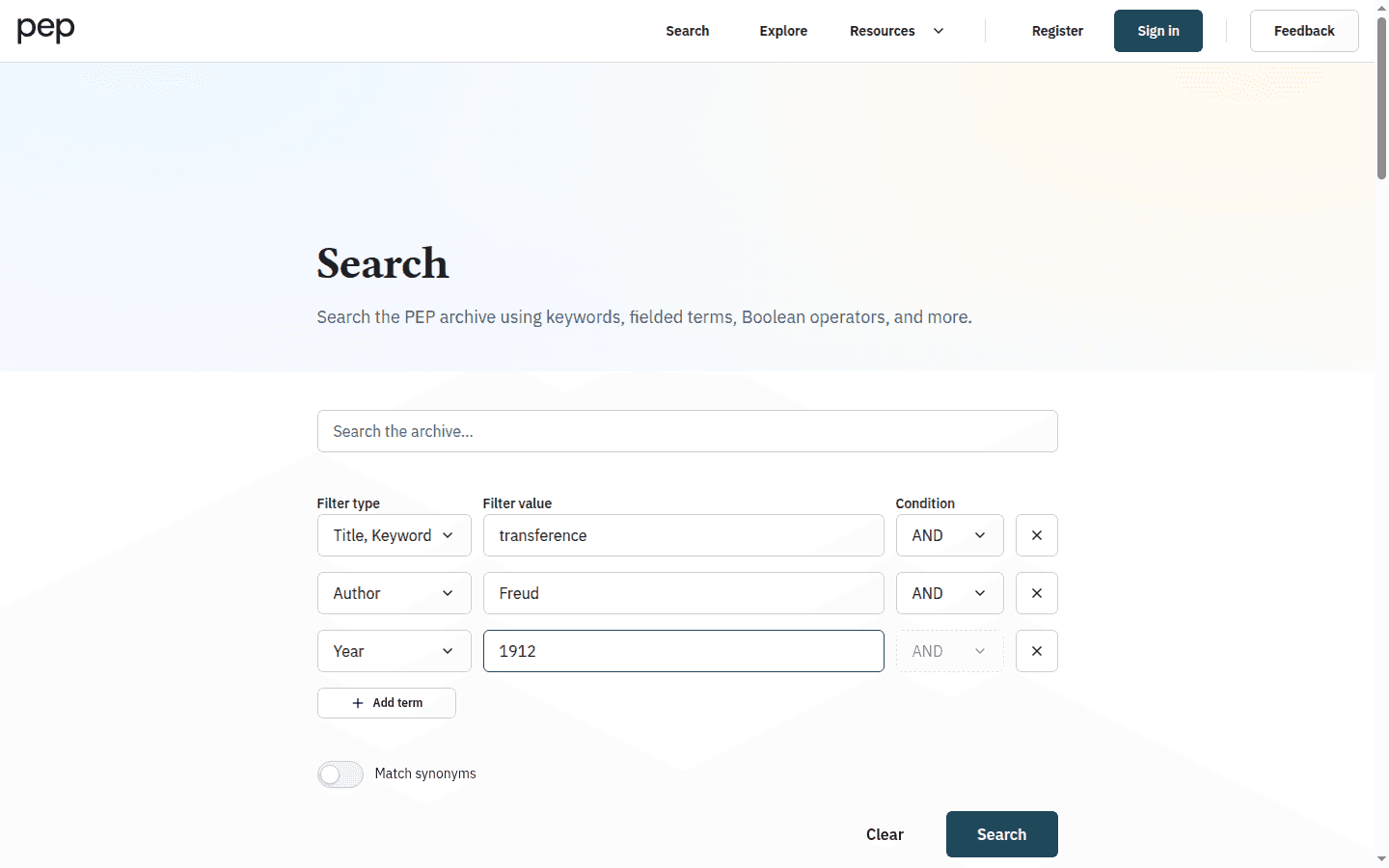
For example, enter `transference` in Title, Keywords, Abstract, add an Author row containing `Freud`, then add a Year row containing `1912`.
Names and titles are not always recorded in exactly the form you expect. If a known-item search returns nothing, try a distinctive part of the title or surname before adding more constraints.
Combine terms with AND, OR and NOT
When you add search rows, choose the Condition on each row to explain how it joins the row that follows. The final row’s control remains disabled.
- AND narrows the search because every connected condition must match.
- OR broadens it because either condition may match.
- NOT excludes documents that match the unwanted condition.
For a search on the Oedipus complex in Freud’s work, you might combine an exact concept phrase with an Author row using AND. If you are comparing two related expressions, OR can gather either expression into the same set. Use NOT carefully: a document may discuss the excluded idea in a useful way even when it is not its main subject.
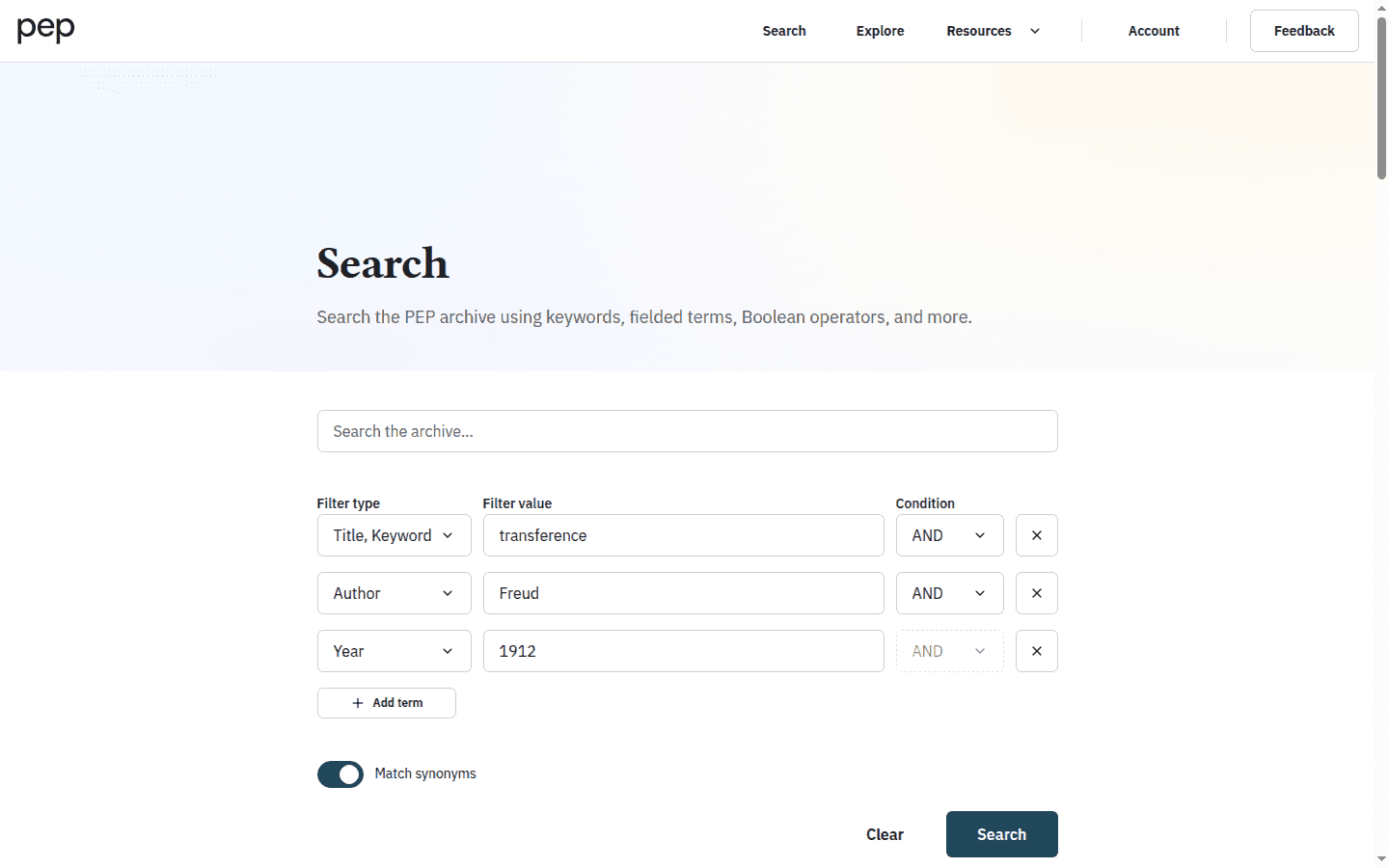
Turn on Match synonyms when you want PEP to include recognised related terms. This can help with exploratory research, but it may broaden the result set. Compare the results with and without the switch if precision matters.
Use search modifiers
Below the form, the Search modifiers section provides quick examples and a fuller reference table. Useful starting points include:
- `"Oedipus Complex"` for an exact phrase;
- `Transference AND Klein` when both terms must match;
- `Transference OR Klein` when either term may match;
- `Play*` to include word variations sharing the same root.
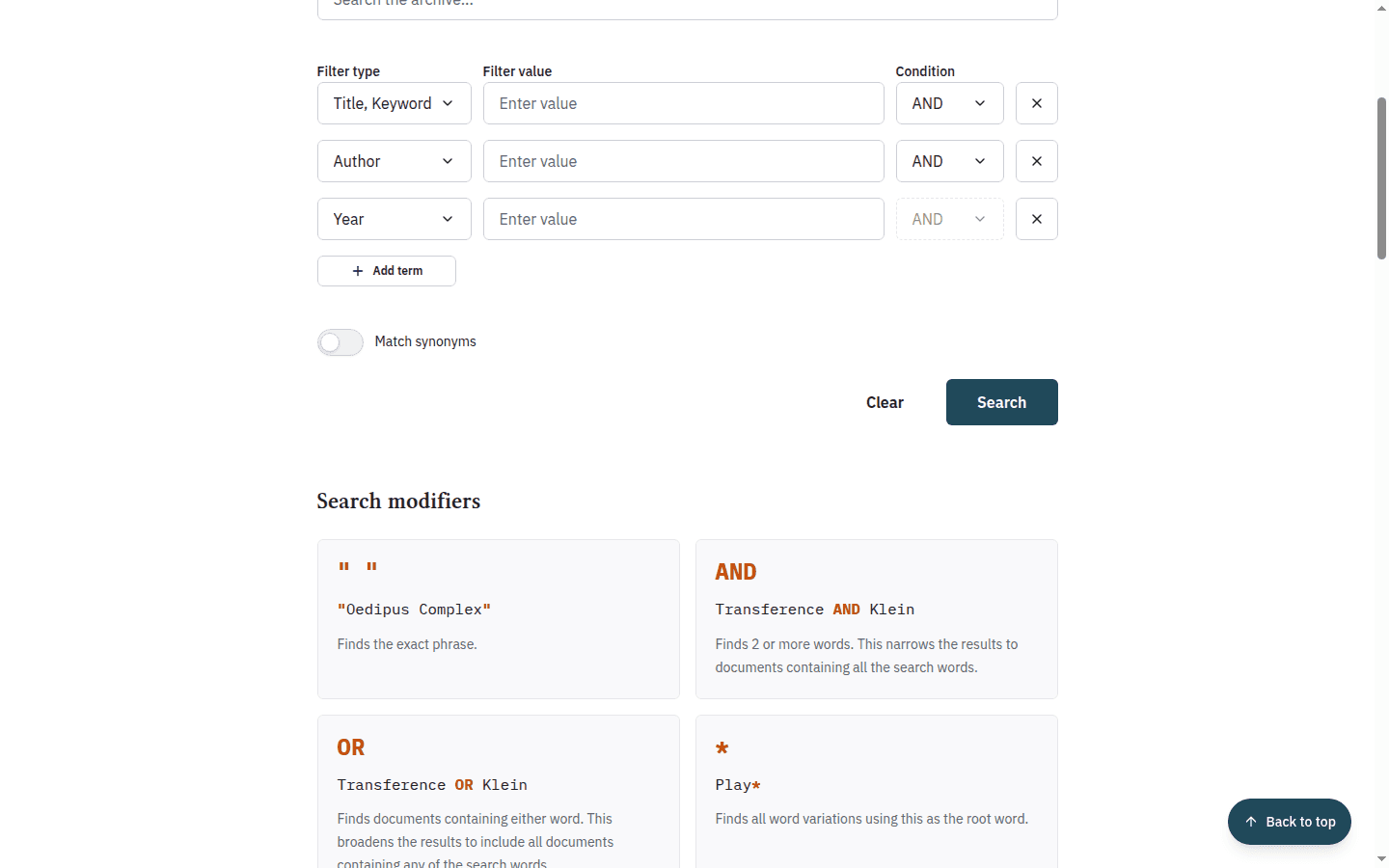
The Reference table also covers required and prohibited terms, grouping, phrase proximity, fuzzy matching and single-character wildcards. Begin with phrases and field rows; add these operators only when they solve a specific search problem.
Review the search before refining it
Select Search when the form expresses the question you intend to ask. On the results page, check the titles and matching snippets. If the set is too broad, return to the search and add a meaningful field or use the result filters. If it is unexpectedly small, remove one constraint, try OR, or turn on Match synonyms.
Notice that this is an iterative process: the first query helps you learn the language used in the archive, and that language helps you improve the next query.
Next steps
Continue with Refining and Using Search Results to interpret matching snippets, apply filters and cite or save selected records. Reading and Navigating a Document explains the Search hits panel that appears when you open a document from results. You can also use Using the Psychoanalytic Glossary to explore the vocabulary around a concept before returning to your search.